Setup guide
QuoteXelerator turns an Atlassian partner quote into line items on a HubSpot deal, priced by rules you set once. This guide takes you from installing the app to your first set of line items, with a screenshot for every step.
What QuoteXelerator does
A representative opens a deal, picks the vendor quote, and QuoteXelerator applies your pricing rules: the discount you pass on, the exchange rate, your margin. You see the full result before anything is written. Confirm it, and the line items land on the deal, ready for your usual HubSpot quote template. Line item creation, target price decisions and recipe changes are recorded in the compliance log.
The rules live in a recipe. You build it once in the app settings and your team reuses it on every deal.
Before you start
- A HubSpot account where you can install apps and edit the deal record layout.
- An Atlassian account with access to the Partner Purchasing Center.
- Less than an hour. The trial asks for no payment details.
Install from the right account. The first person to install the app becomes the owner. Pick whoever will run quoting, or a shared team account. You can hand ownership over later. A transfer takes effect after at least 24 hours and can be cancelled until then.
The five stages
-
Install the app and start the trial
Connect QuoteXelerator to your HubSpot account and open its settings.-
Find QuoteXelerator in the Marketplace
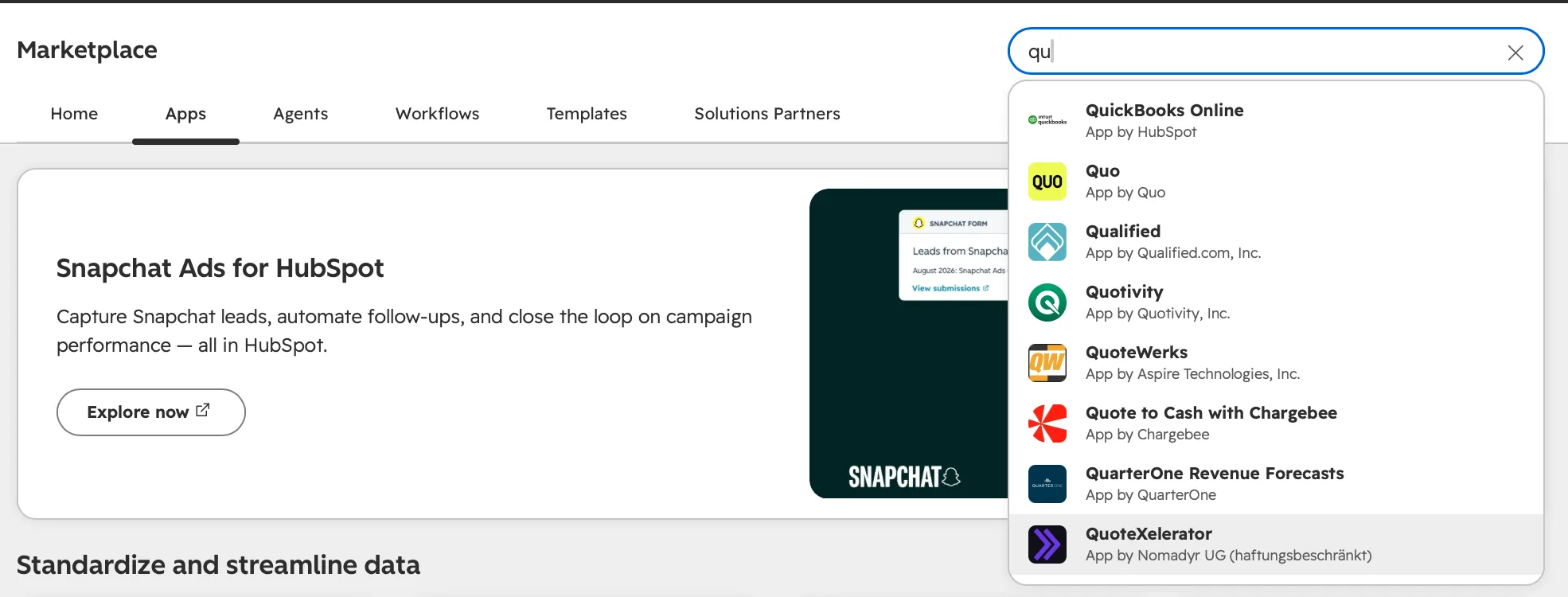
In HubSpot, open the Marketplace and choose Apps. Type QuoteXelerator into the search field and pick it from the results.
Search the Marketplace for QuoteXelerator. -
Choose Install
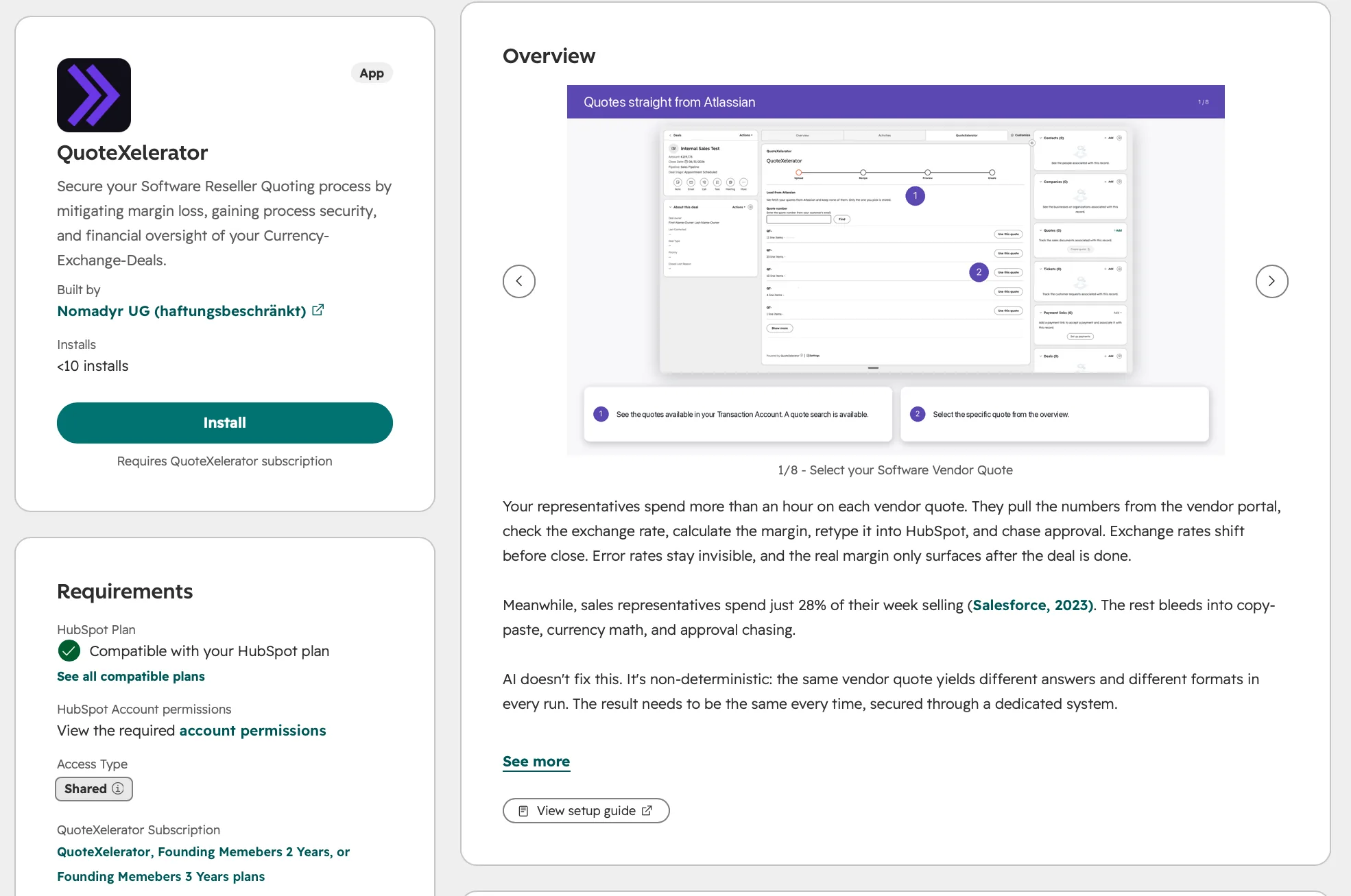
The listing opens with an overview of the app, its requirements and a link to this guide. Choose Install.
The QuoteXelerator listing with the Install button. -
Read the access and connect the app
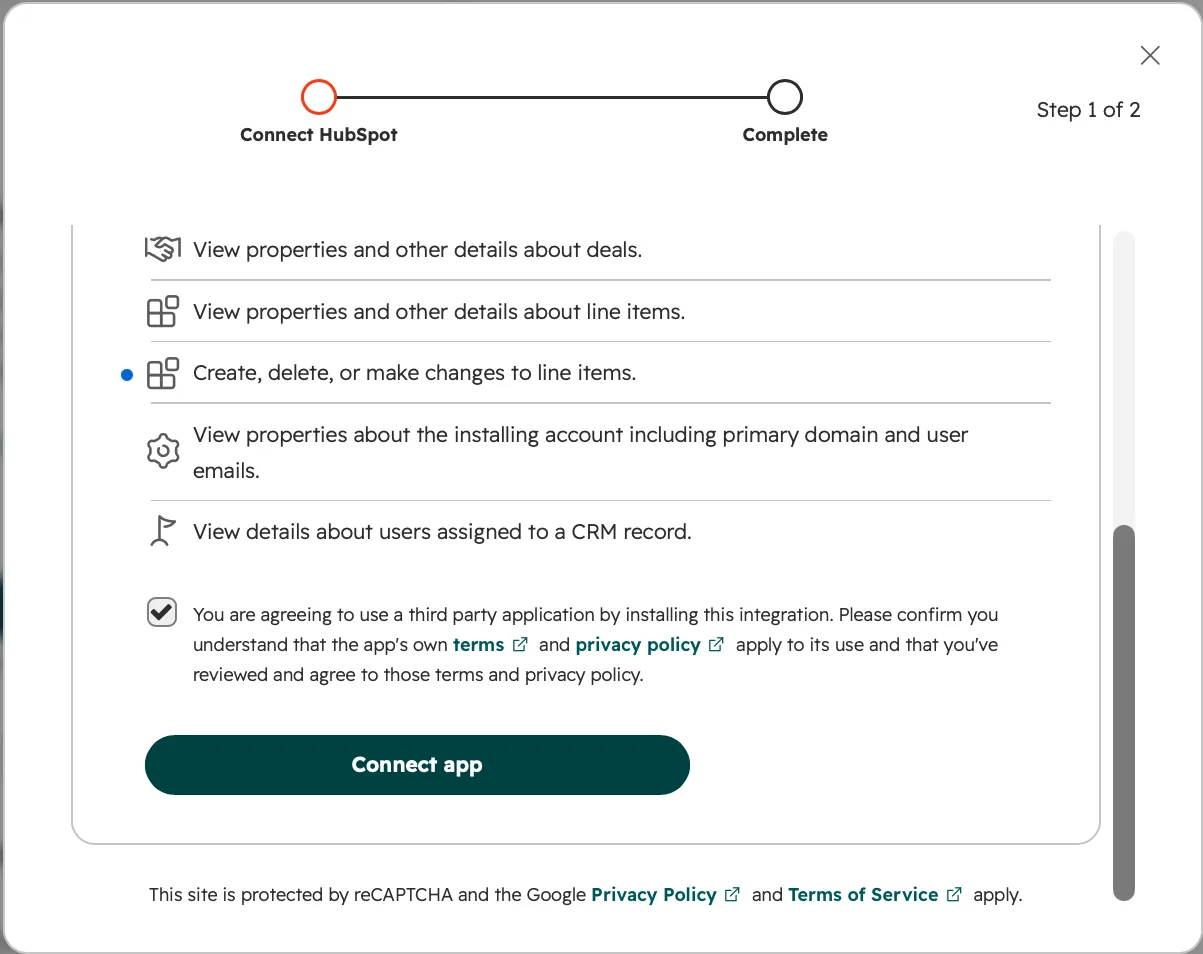
HubSpot lists what QuoteXelerator may do in your account:
- View deals.
- View, create, change and delete line items. The app replaces a deal's line items when you create new ones.
- Basic account information, which HubSpot includes for every app: the account's primary domain and user emails.
- View which users are assigned to a deal, so it knows the deal owner.
It cannot see contacts, companies or your email inbox. Tick the box to agree to our terms and privacy policy, then choose Connect app.
The access you approve, the terms checkbox and Connect app. -
Open the app settings
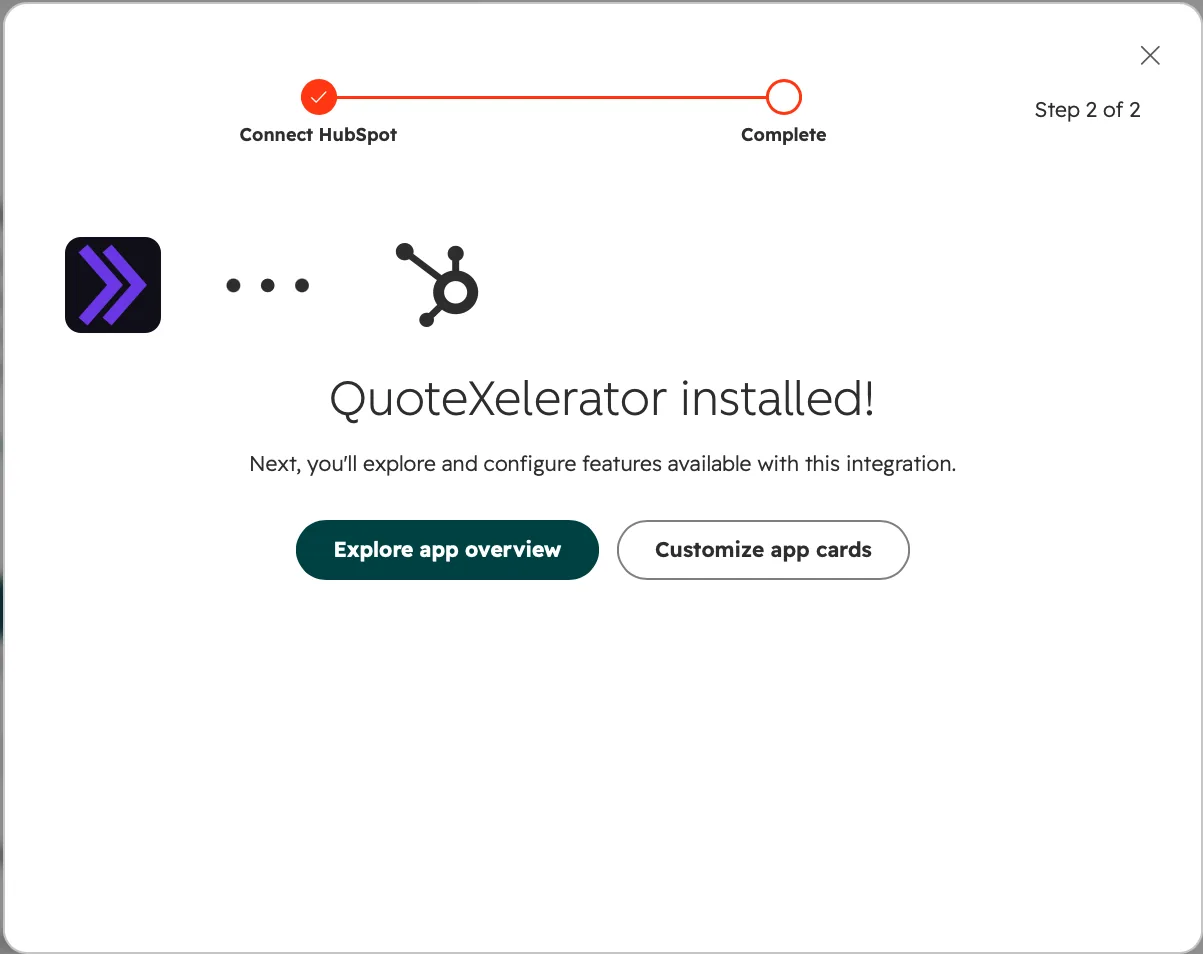
HubSpot confirms that QuoteXelerator is installed. Choose Customize app cards. HubSpot opens the app's page on its app card overview. Choose Settings at the top of that page. You start the trial there in the next step.
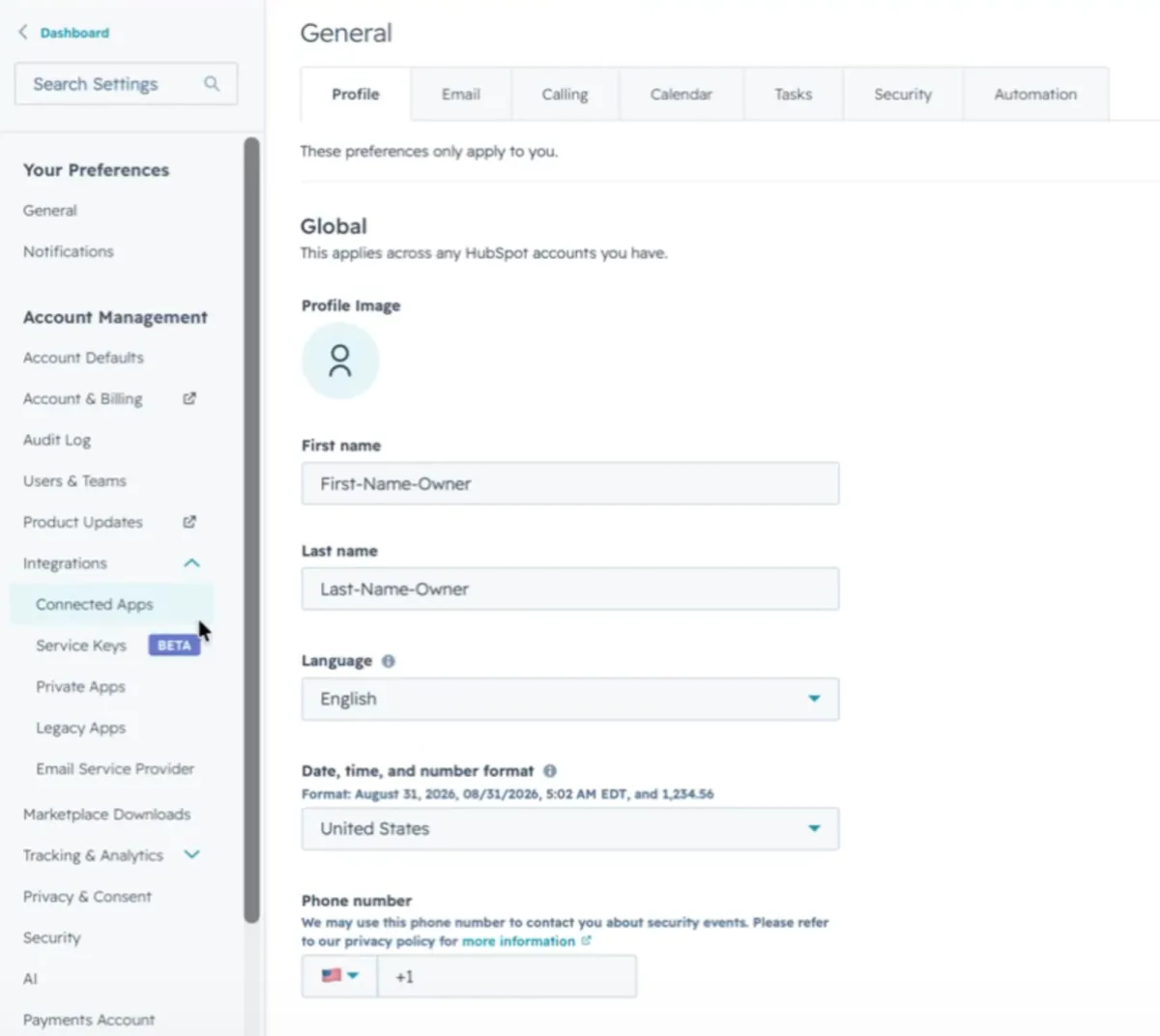
Installed. Customize app cards opens the app's page in HubSpot. Closed the dialog, or coming back later? Open Settings in HubSpot. In the left menu, under Integrations, choose Connected Apps.
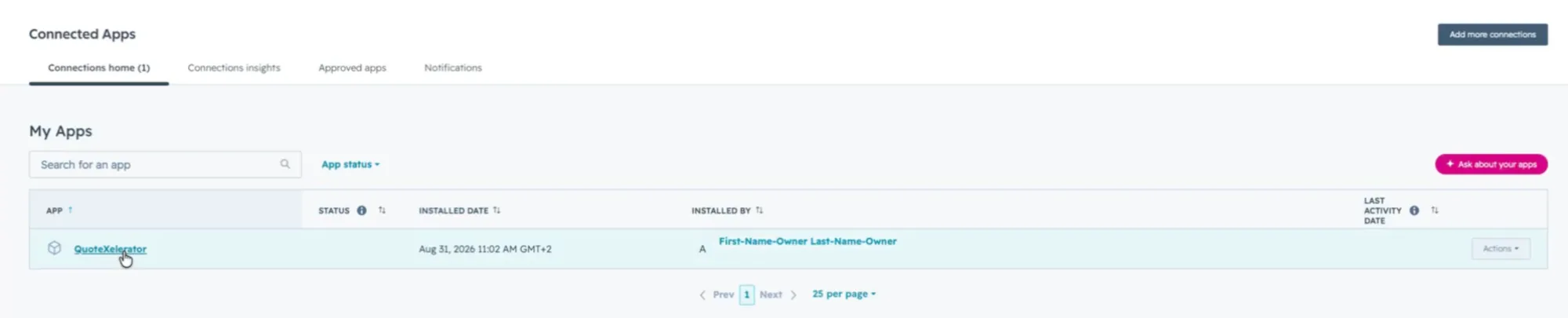
Settings, then Integrations, then Connected Apps. QuoteXelerator is in the list. Click its name, then choose Settings.
QuoteXelerator in your list of connected apps. -
Start the free trial
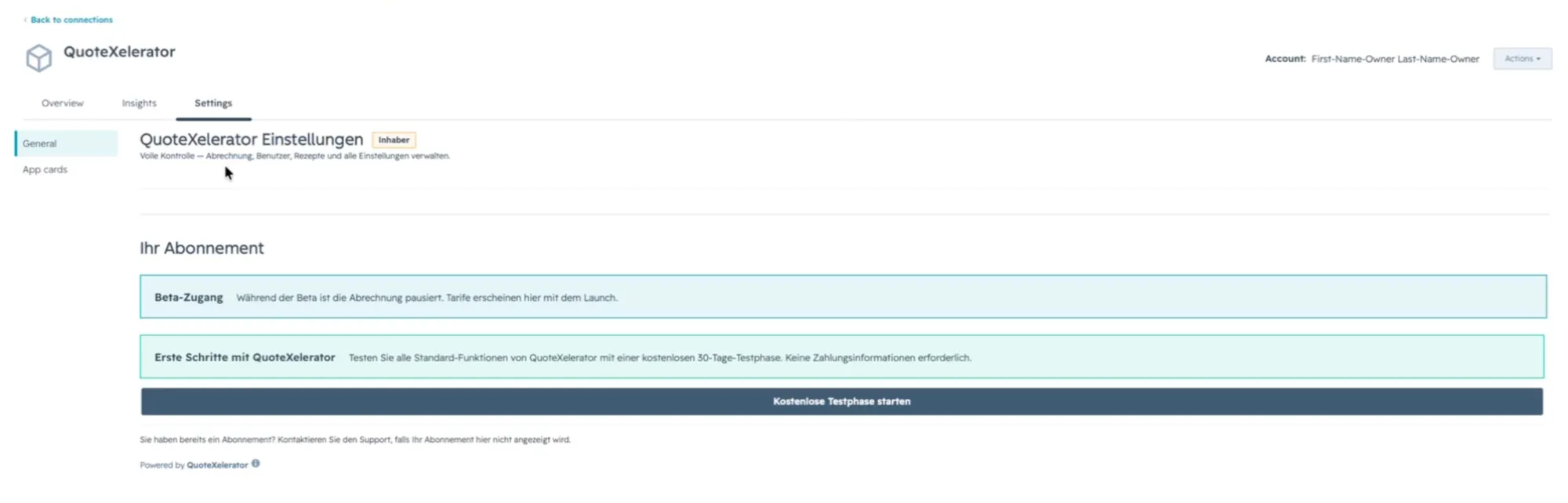
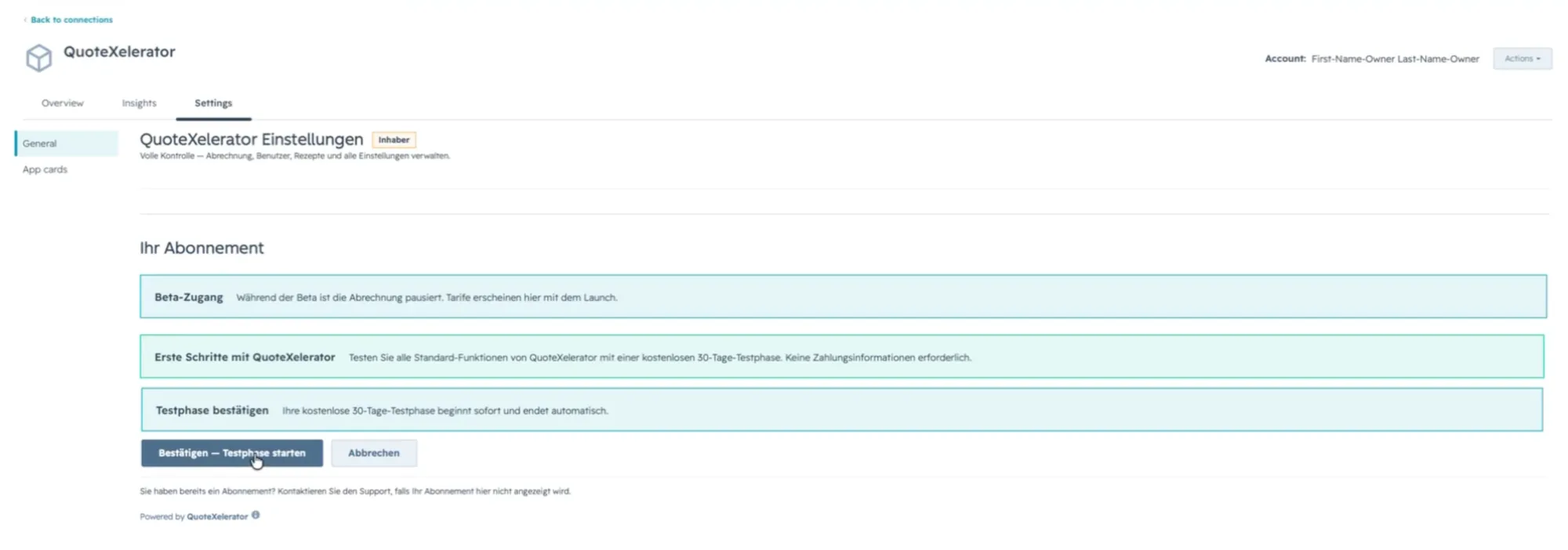
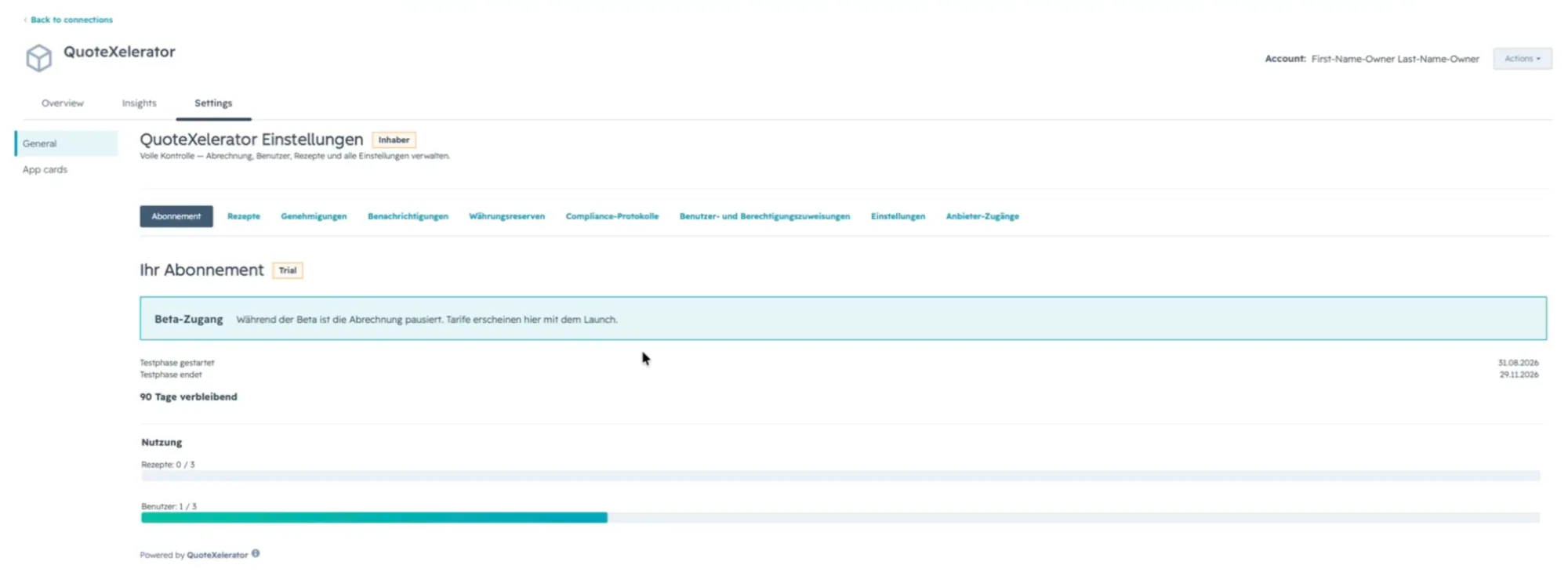
On the app's Settings tab, under Your Subscription, choose Start Free Trial, then Confirm. No payment details are needed.
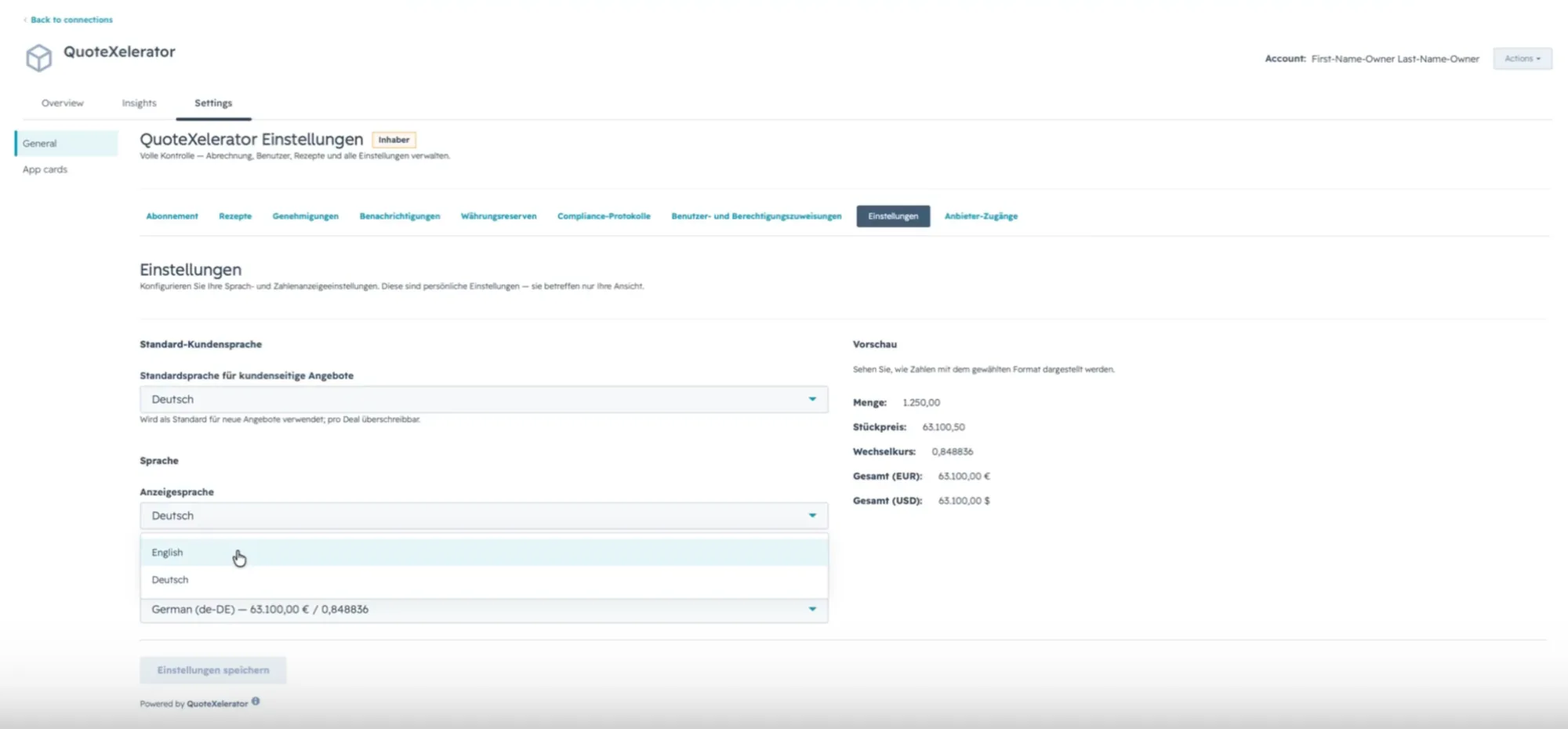
The settings page may open in German at first. The next step shows how to switch it.
The subscription section with the button to start the trial. Confirm to start the trial right away. Once the trial runs, the full settings menu appears. You can see when the trial ends and how many recipes and team members you have used.
The settings menu, available once the trial is active. -
Pick your language
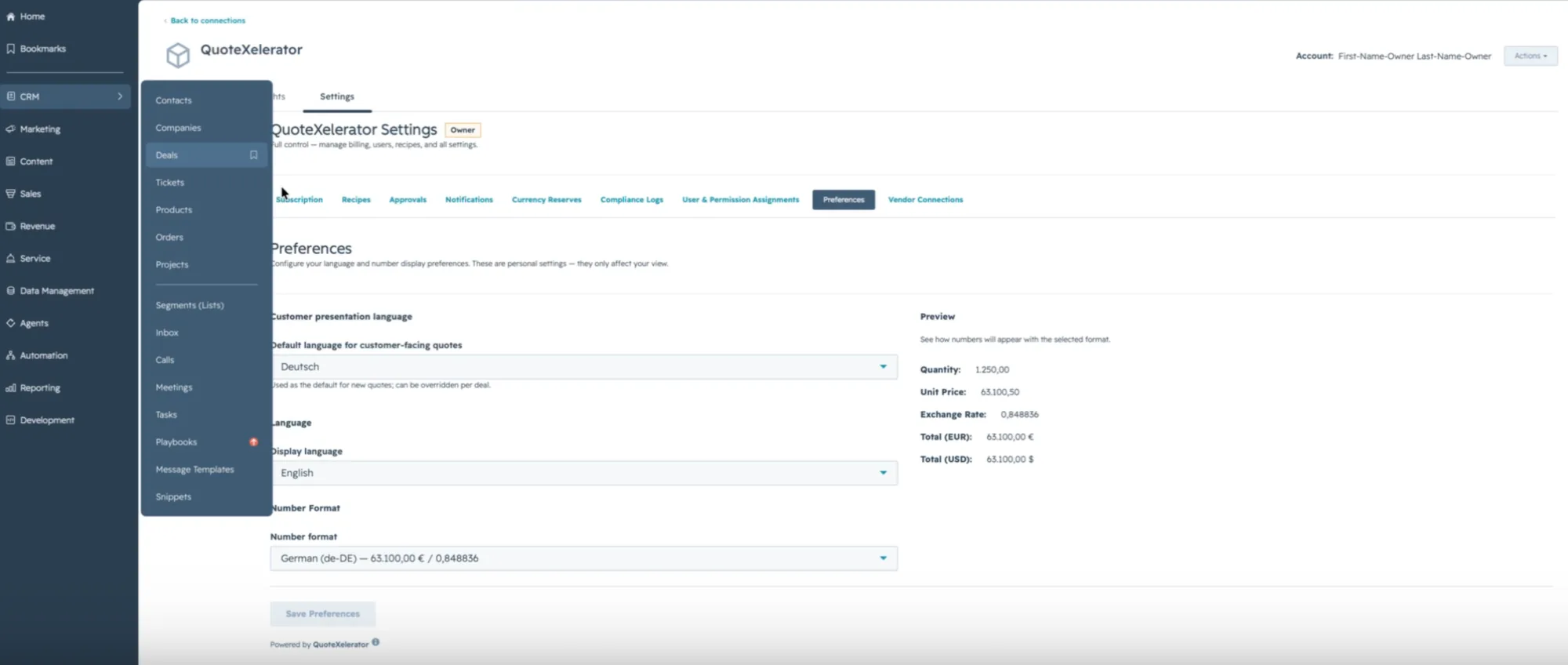
Open Preferences. Set Display language to English or German and choose Save Preferences. This changes only what you see. Everyone on your team picks their own.
The same tab sets the number format and the default language of the line items your customers see. See Display language for the details.
Choosing the display language under Preferences.
-
-
Publish your first recipe
Set the pricing rules the card will apply.A recipe holds the rules that turn the vendor's numbers into yours: the discount your customer gets, how currency is converted, and your margin strategy. The card only offers published recipes.
-
Create a recipe
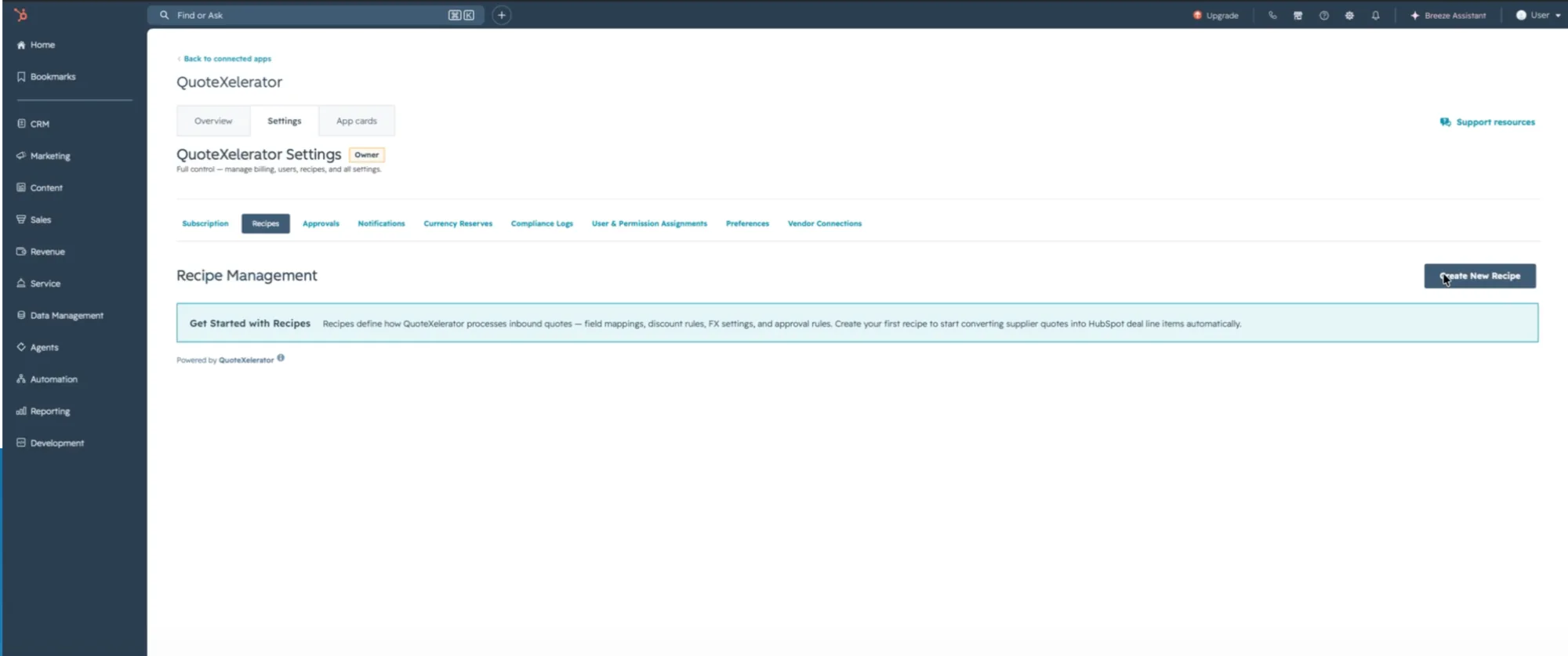
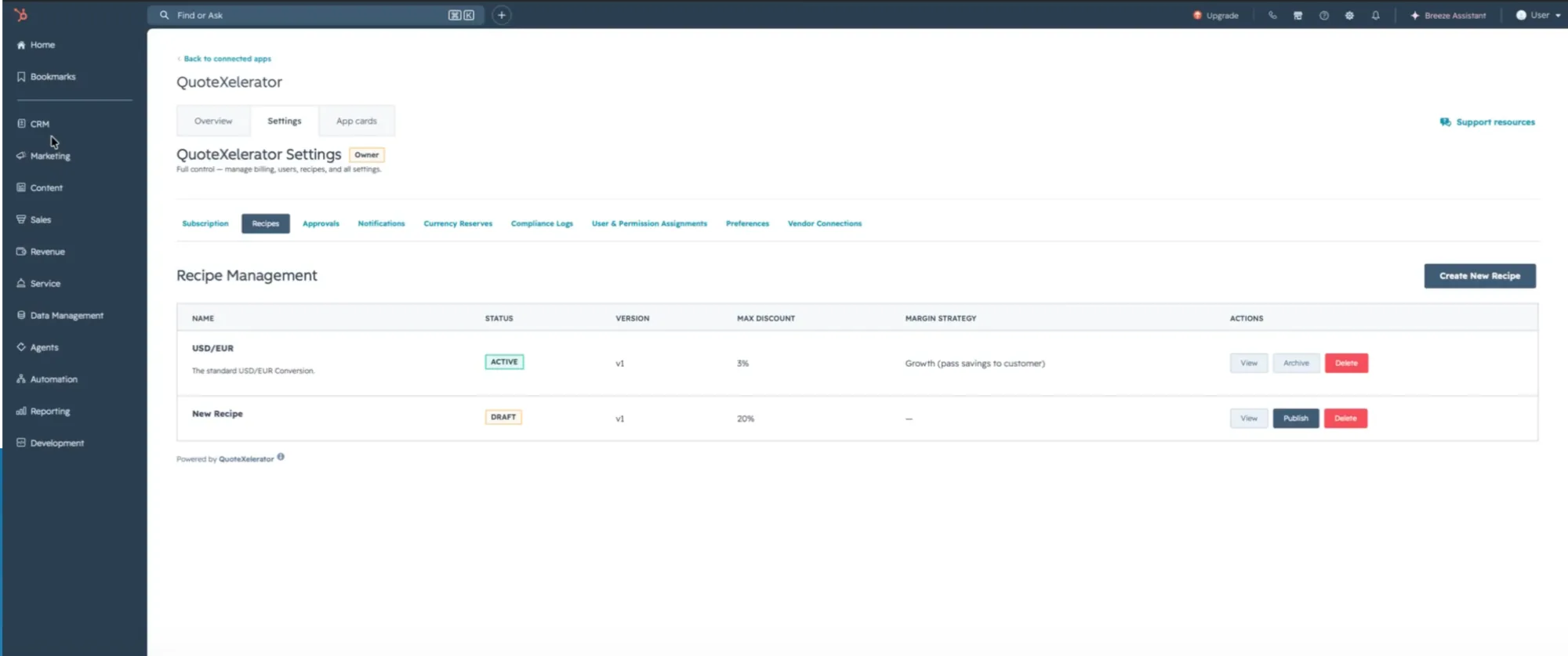
In the app settings, open Recipes and choose Create New Recipe.
Recipe Management before your first recipe. -
Fill it in, save, and publish
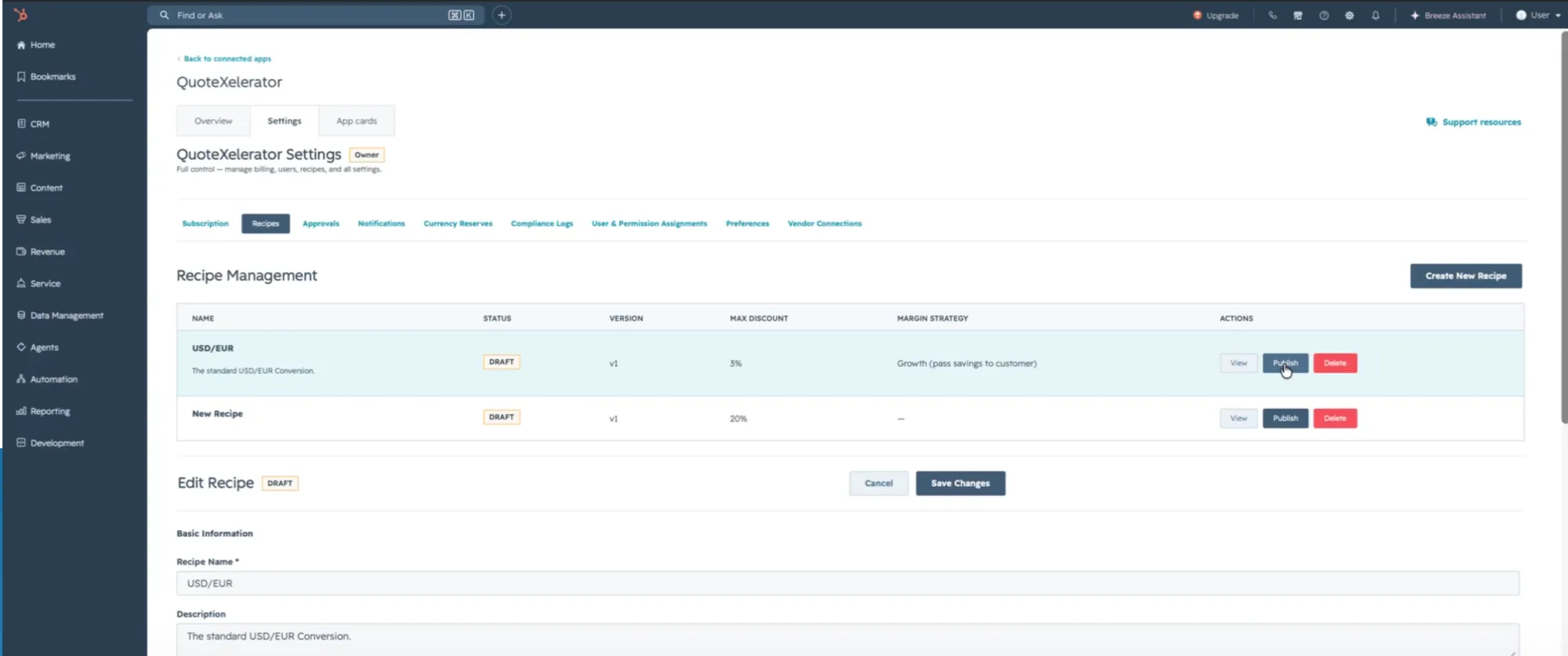
Give the recipe a name your team will recognise, such as the currency pair it covers. Set the customer discount and the currencies, then choose Save Changes. The recipe is now a draft. Choose Publish in its row to make it usable.
Two pages help you decide what to enter: discounts and setting the currencies.
A saved draft. Publish makes it available on deals. -
Check that it is active
A published recipe shows the status Active. From now on it is locked, so you can always show which rules priced a deal. To change how you sell later, publish a new recipe and archive this one.
Active recipes are the ones your team can use. -
Assign your team
Open User & Permission Assignments. Add the colleagues who will quote, give each a role, and choose the recipes they may use. Representatives run their assigned recipes. Managers approve requests.
Assign everyone who will quote. Colleagues without an assignment cannot use the card. Before you hand out the manager role, read choosing a role.
-
-
Add the card to your deals
Give QuoteXelerator its own tab on the deal record.The card does not appear on deals by itself. You add it to the deal record layout once, and everyone using that layout sees it. We recommend a separate tab, so the deal overview stays tidy for colleagues who do not quote.
-
Open a deal
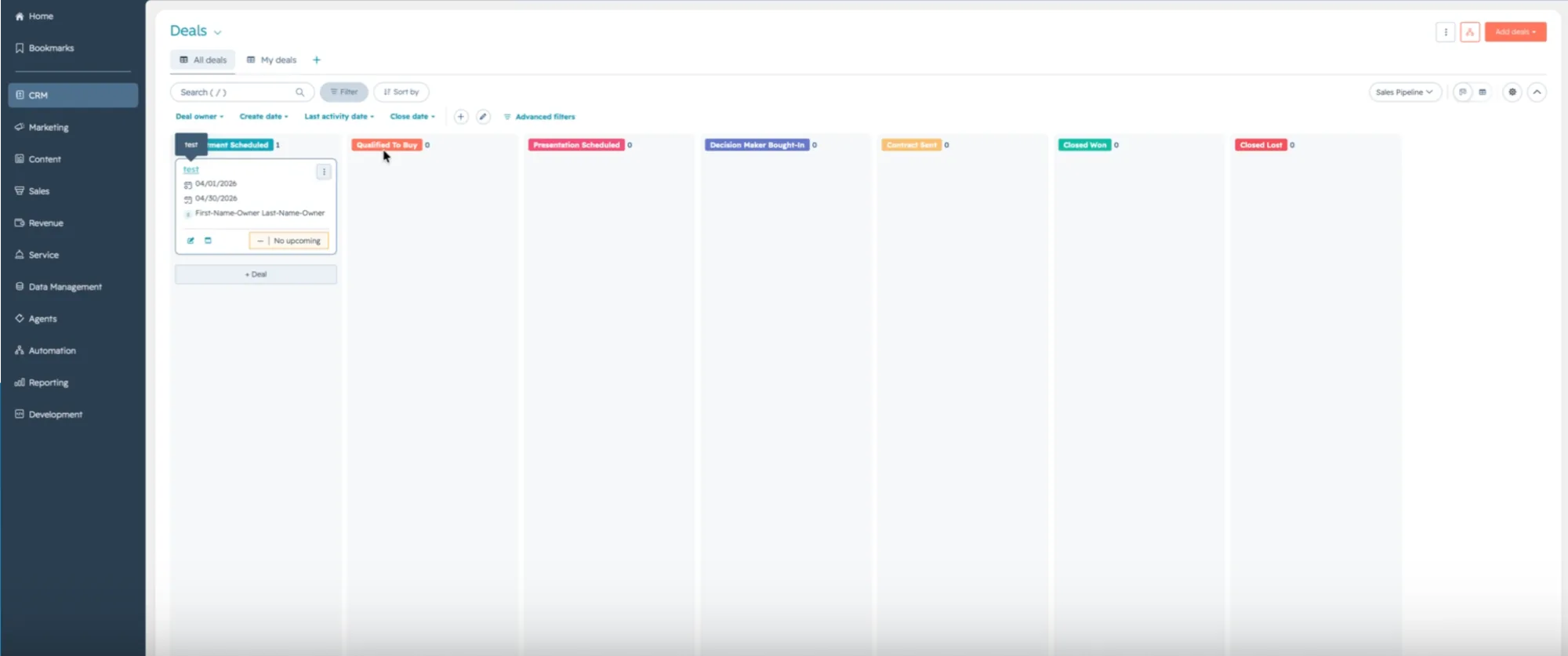
In HubSpot, go to CRM, then Deals, and open any deal.
CRM, then Deals. Open any deal. The layout you change applies to all deals. -
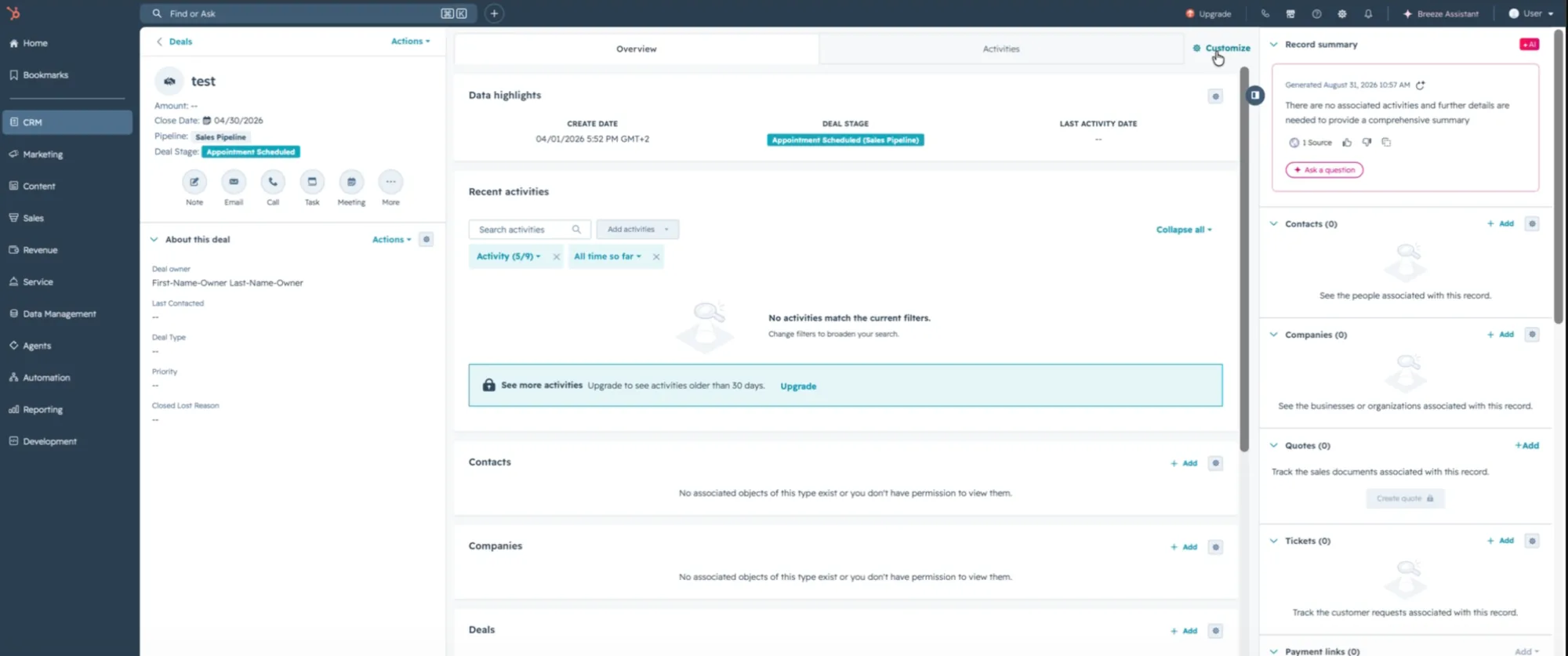
Choose Customize
On the deal record, choose Customize, to the right of the tabs.
Customize opens the record layout settings. -
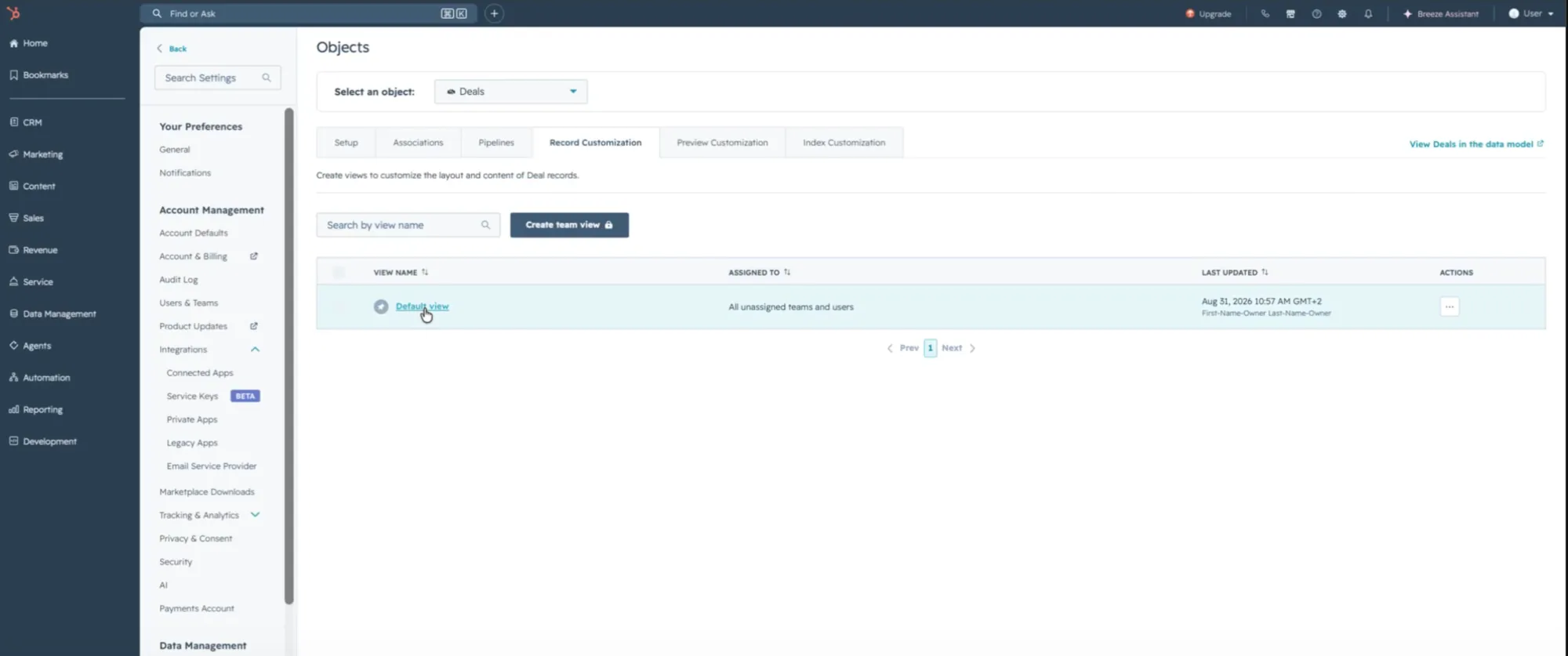
Pick the view your team uses
HubSpot opens Record Customization for deals. Click the view your representatives work in. Most accounts only have Default view.
You can also get here through Settings, then Objects, then Deals, then Record Customization.
Pick the view your team uses. -
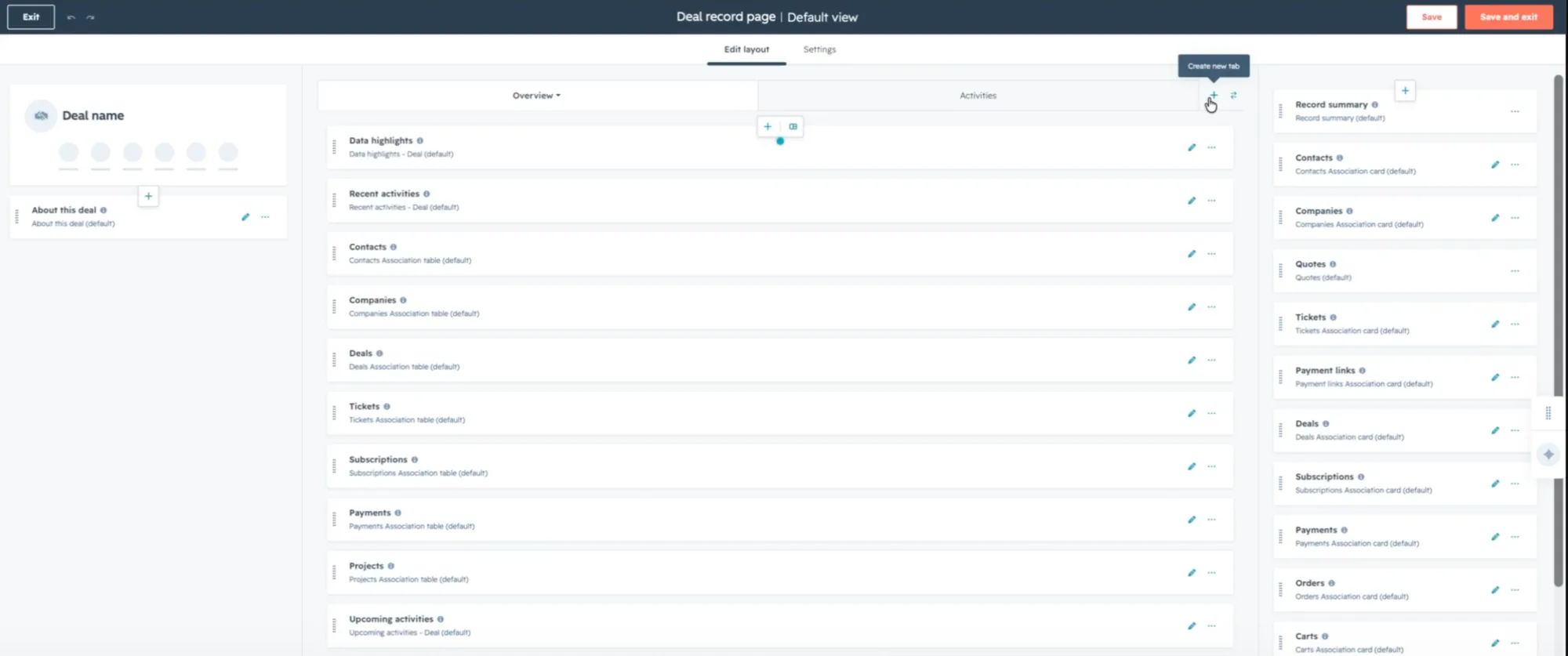
Create a tab for QuoteXelerator
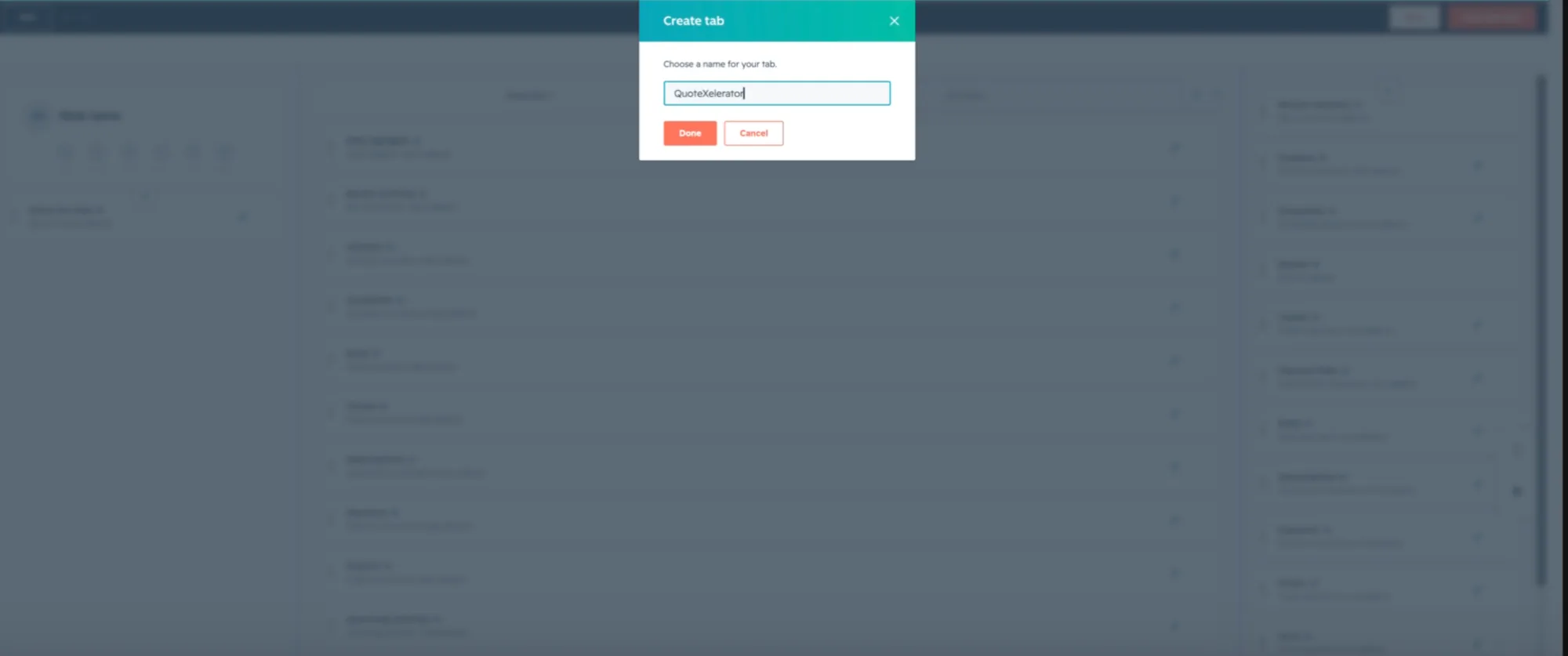
In the layout editor, click + next to the tab names to create a new tab. Name it QuoteXelerator and choose Done.
HubSpot allows five tabs per view, Overview included.
The plus icon creates a new tab. Naming the tab. -
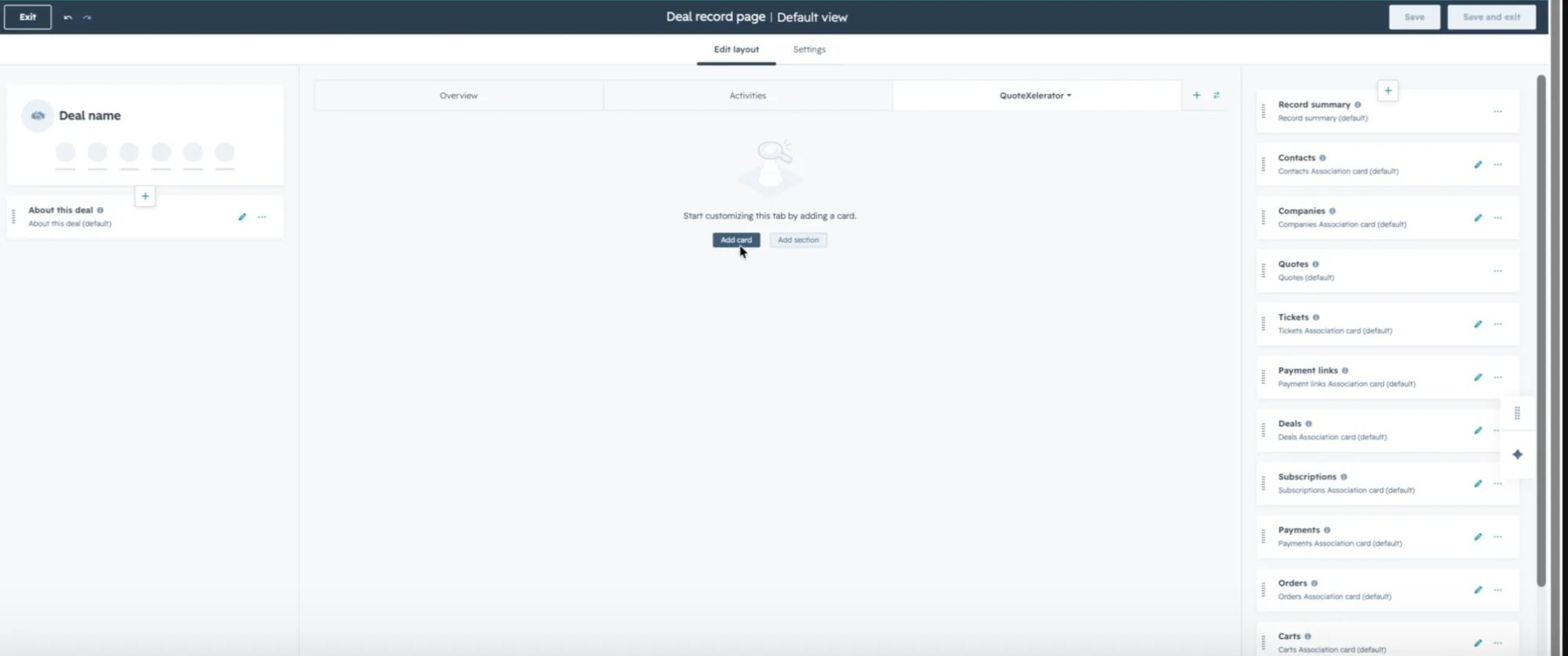
Add the QuoteXelerator card
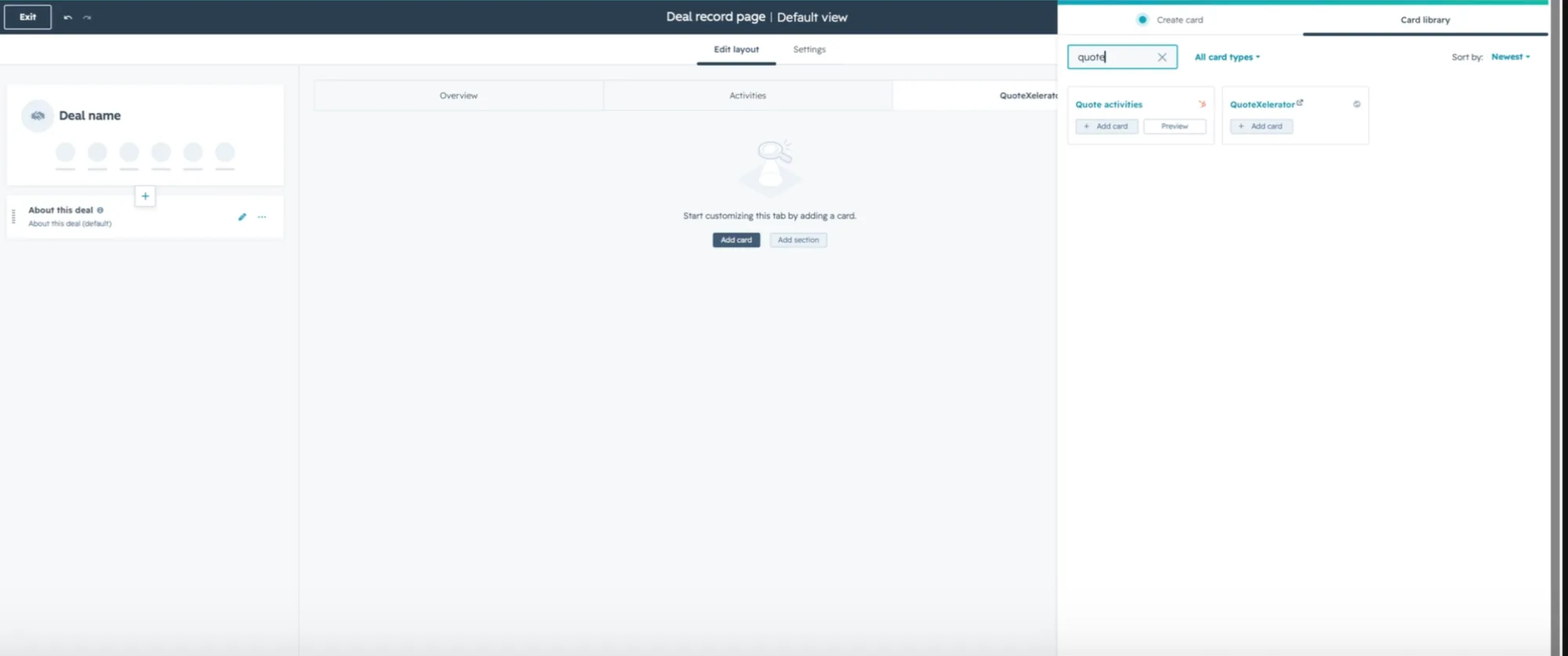
On the new, empty tab, choose Add card. In the panel that opens, switch to Card library, search for QuoteXelerator, and choose Add card on it.
The new tab is empty until you add a card. Find QuoteXelerator in the card library. -
Save and exit
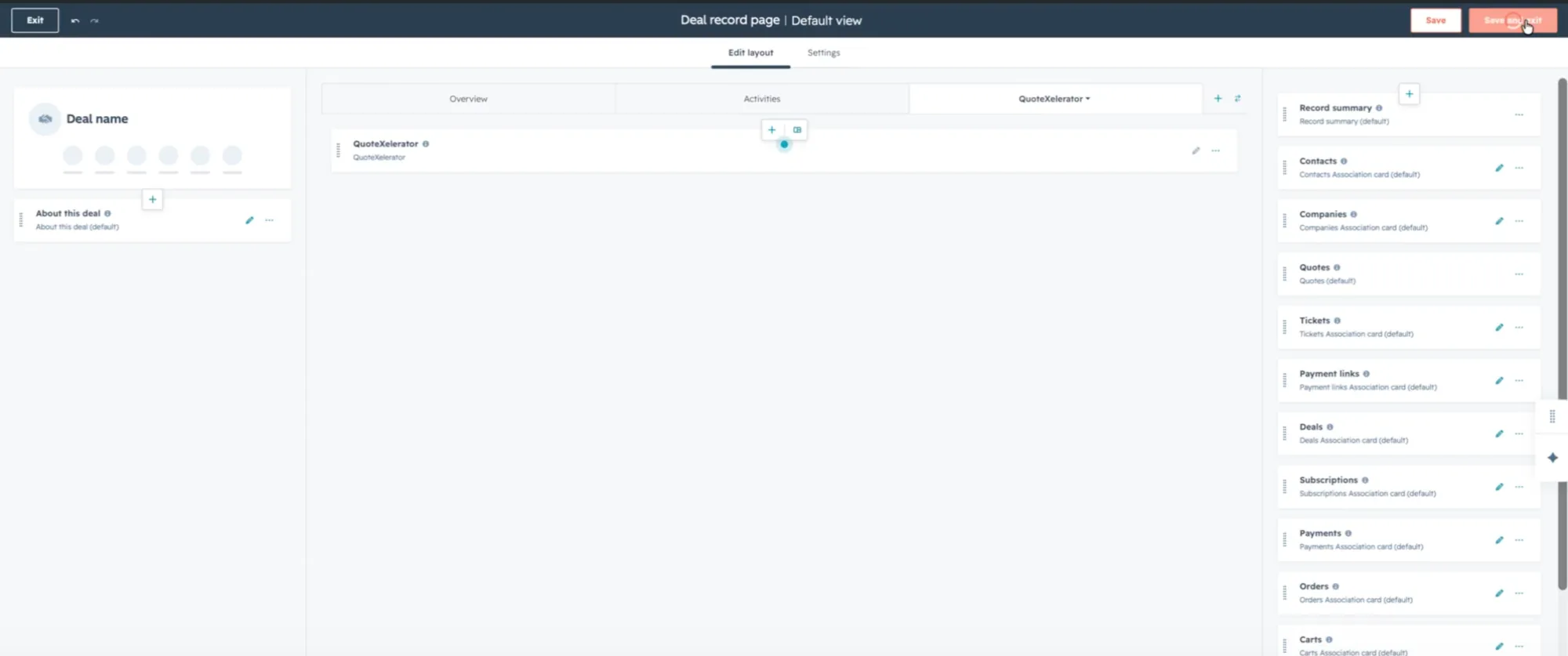
The card now sits on the tab. Choose Save and exit at the top right.
Save the layout. -
Open the new tab on a deal
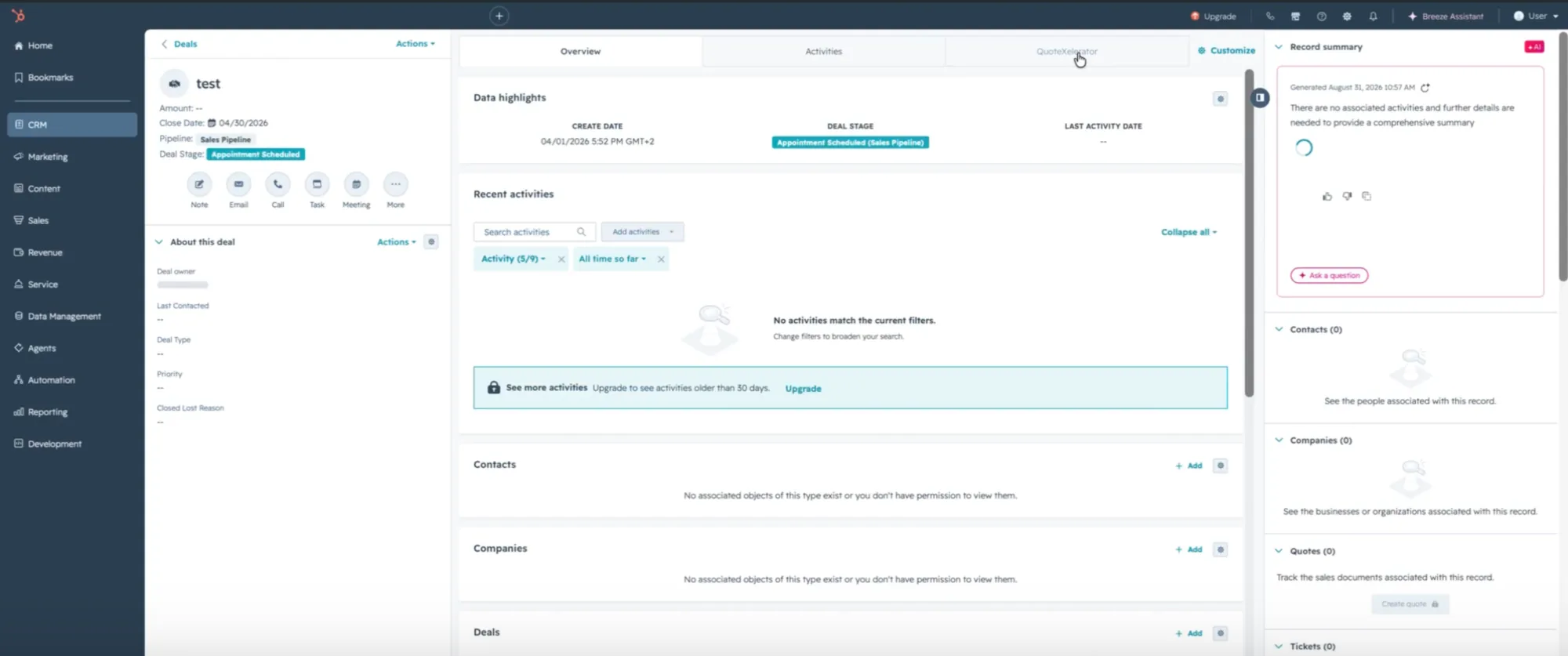
Back on the deal, click the QuoteXelerator tab. If it is not there yet, refresh the page. HubSpot sometimes needs one reload to show a layout change.
The QuoteXelerator tab on the deal record.
-
-
Connect your Atlassian account
Create an API token at Atlassian and add it to the card.QuoteXelerator reads your partner quotes with an Atlassian Partner API access token. You create it in the Partner Purchasing Center, not in your personal Atlassian profile. The token only reaches the transaction accounts you allow.
-
Open API Onboarding
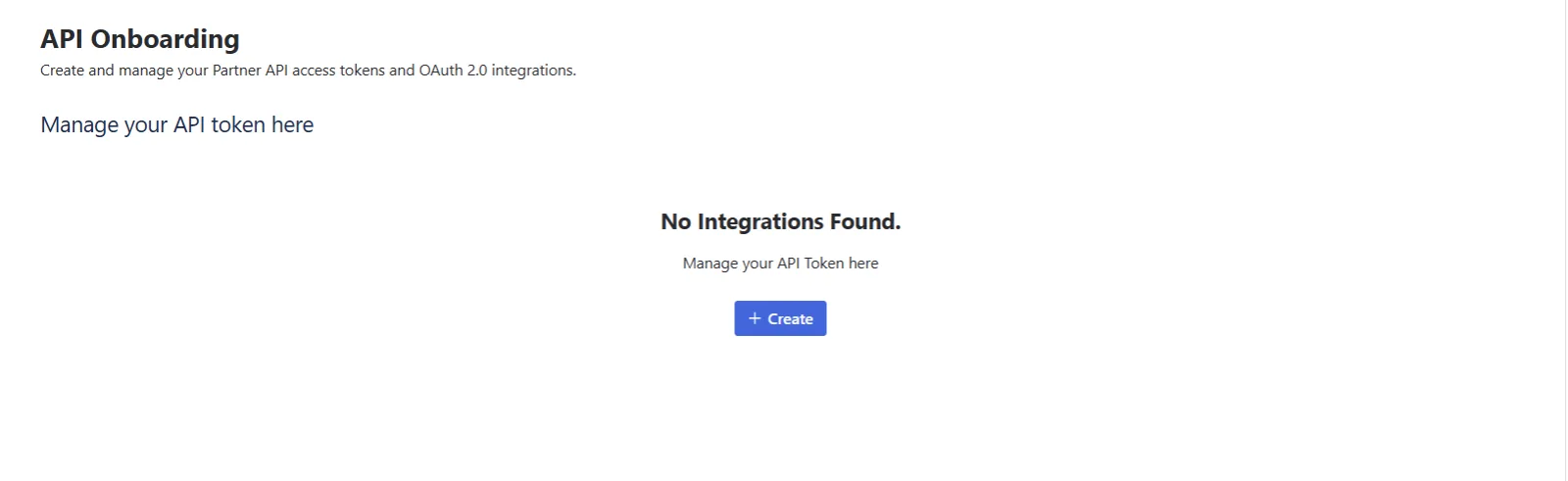
Sign in to the Partner Purchasing Center with the account that sees your partner quotes. Open Settings, then API Onboarding. Before your first token, the page reads No Integrations Found. Choose Create.
API Onboarding before any token exists. -
Name the token and set an expiry date
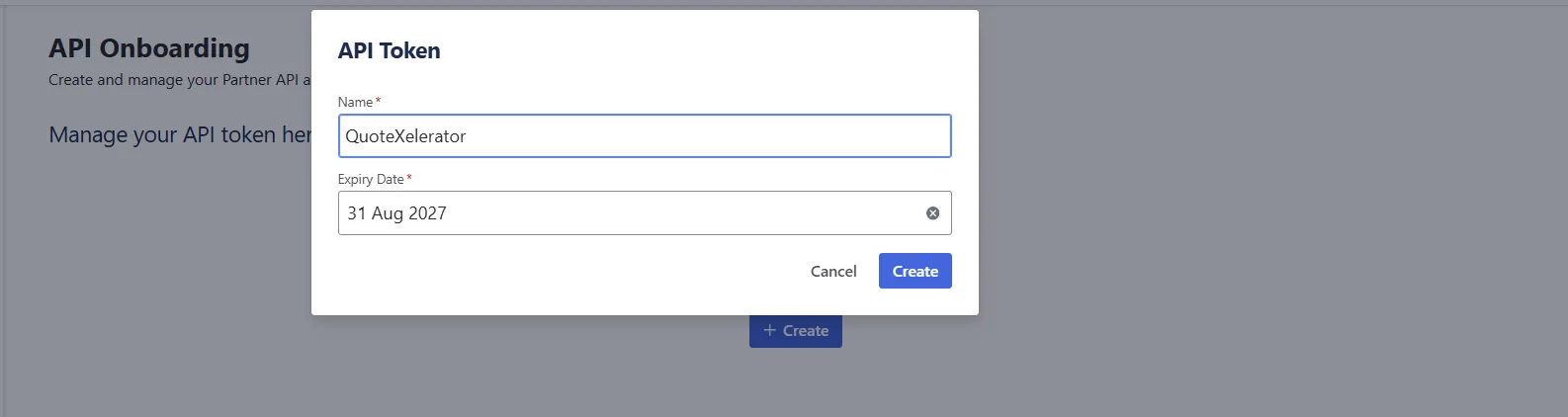
Name it QuoteXelerator or similar, and pick an expiry date. One year works well. Write the date down, because the card asks for it. We use it to warn you before the token runs out.
Name and expiry date for the new token. -
Copy the token
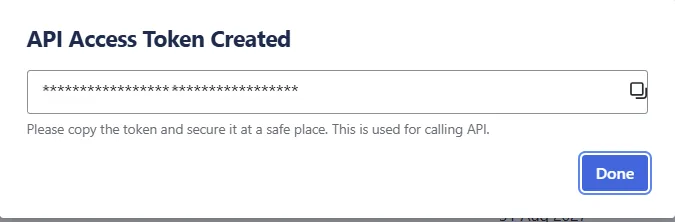
Atlassian shows the token once. Copy it and keep it somewhere safe until you add it to the card. If you close the dialog without copying it, delete the token and create a new one.
Copy the token before choosing Done. -
Open the token's settings
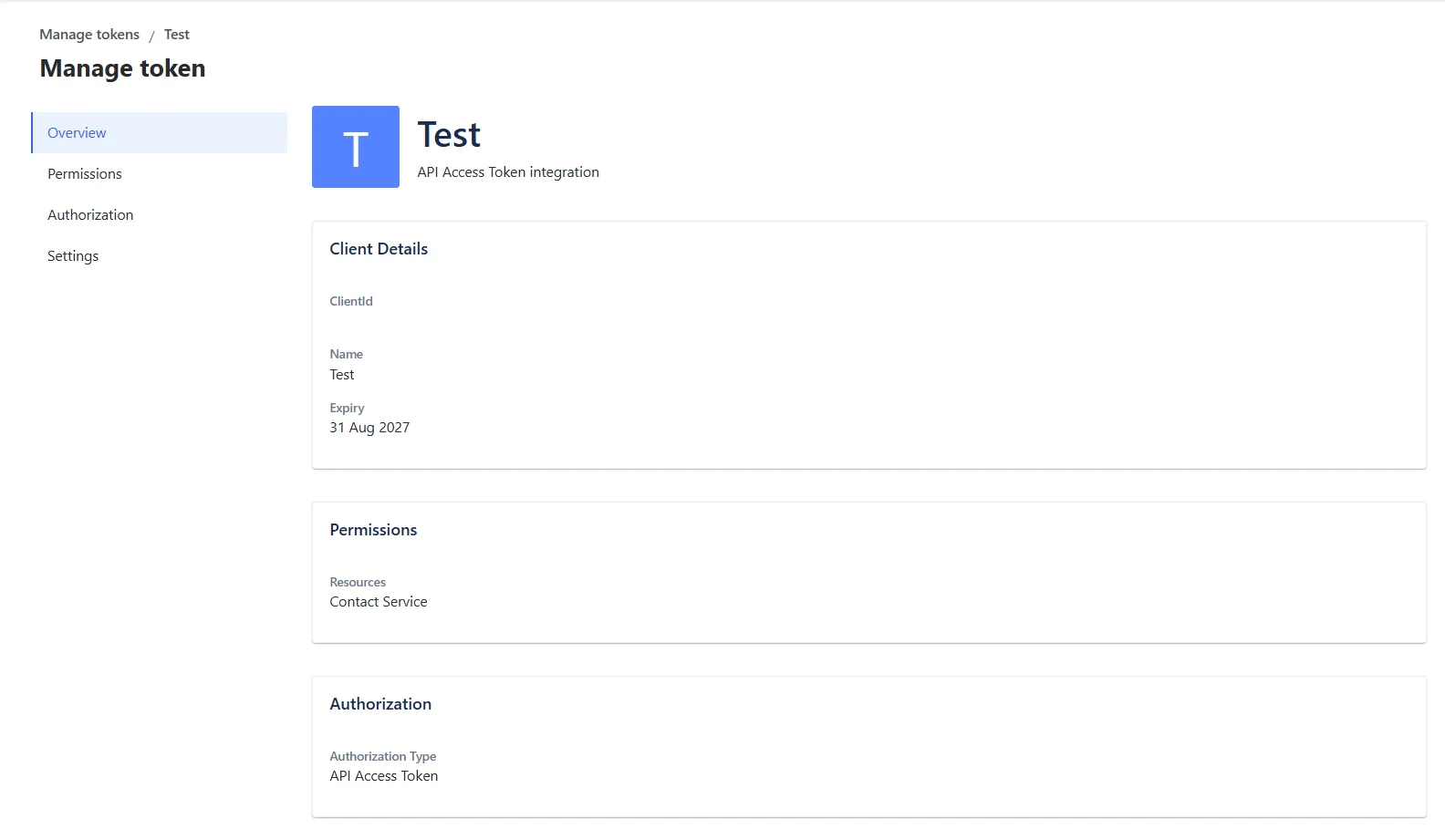
The token now appears in the list with its expiry date. Click the icon under Manage.
The Manage icon opens the token's settings. The overview shows the token's name and expiry. Open Permissions in the left menu.
The token overview. Permissions is next. -
Allow your transaction account
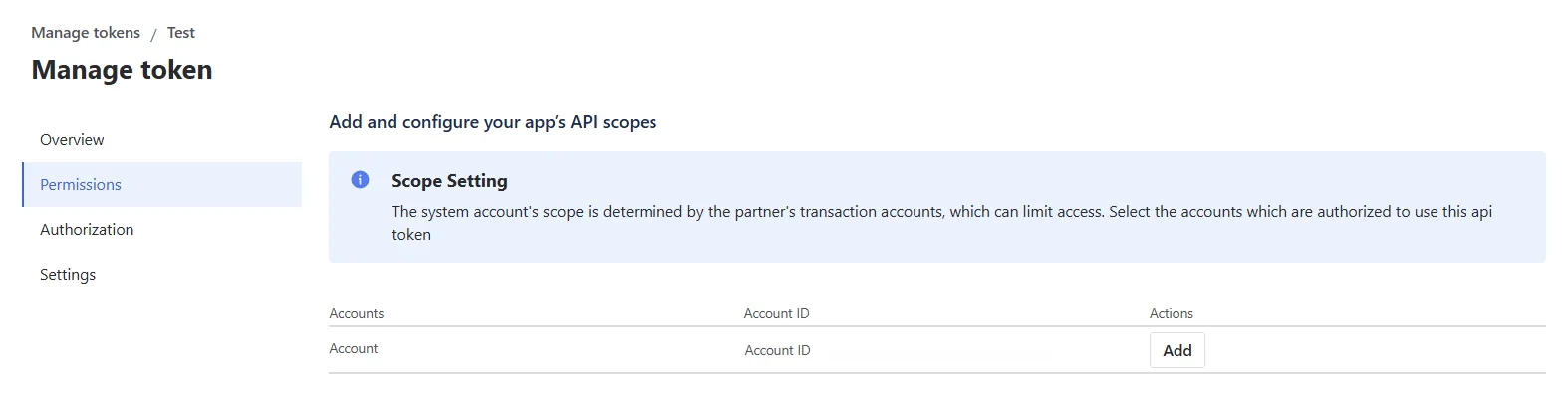
A new token can read nothing until you allow a transaction account. Find the account you buy your Atlassian licences through and choose Add.
Copy the Account ID from the same row while you are here. The card asks for it, and Atlassian shows it nowhere else.
Add the transaction account and copy its Account ID. -
Add the token to the card
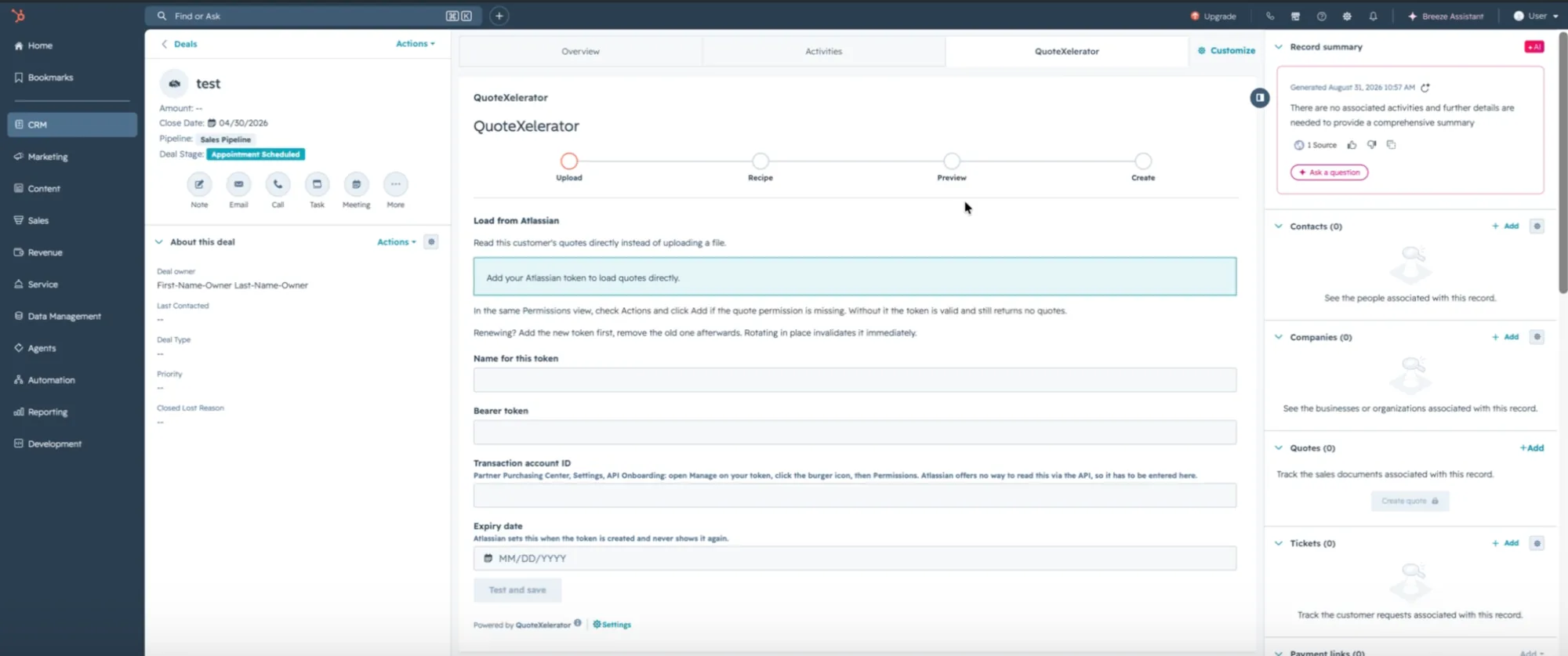
Back in HubSpot, open the QuoteXelerator tab on a deal. Until a token is connected, the card shows the Load from Atlassian form. Fill in:
- Name for this token, so you can tell connections apart later. The token itself is never shown again.
- Bearer token, the token you copied.
- Transaction account ID, the Account ID from the Permissions tab.
- Expiry date, the date you set at Atlassian.
Choose Test and save. We check the token with Atlassian before storing it. If Atlassian refuses it, nothing is saved and the message says what to fix. Usually the transaction account has not been added under Permissions yet.
The card asks for a token the first time you open it. -
Check that quotes come through
Refresh the page. The card now lists the quotes on your transaction account. Seeing the list means the connection works.
-
-
Create line items on your first deal
Pick a quote, check the preview, and write the line items.This is the part your representatives repeat on every deal. Open the QuoteXelerator tab on a deal and work through the steps along the top of the card.
-
Pick the quotes
The list shows the open quotes on your transaction account, for all customers. The quickest way to the right one is the quote number from your customer's email: type it under Quote number and choose Find. Search also finds accepted quotes, including paid ones, which the list leaves out.
Tick the quote, or every quote that belongs to this deal, and choose Review selection. Check the selection, then choose Use this quote or Use these 2 quotes. Quotes in different currencies cannot be combined. Vendor quote import explains how several quotes are priced together.
-
Pick the recipe
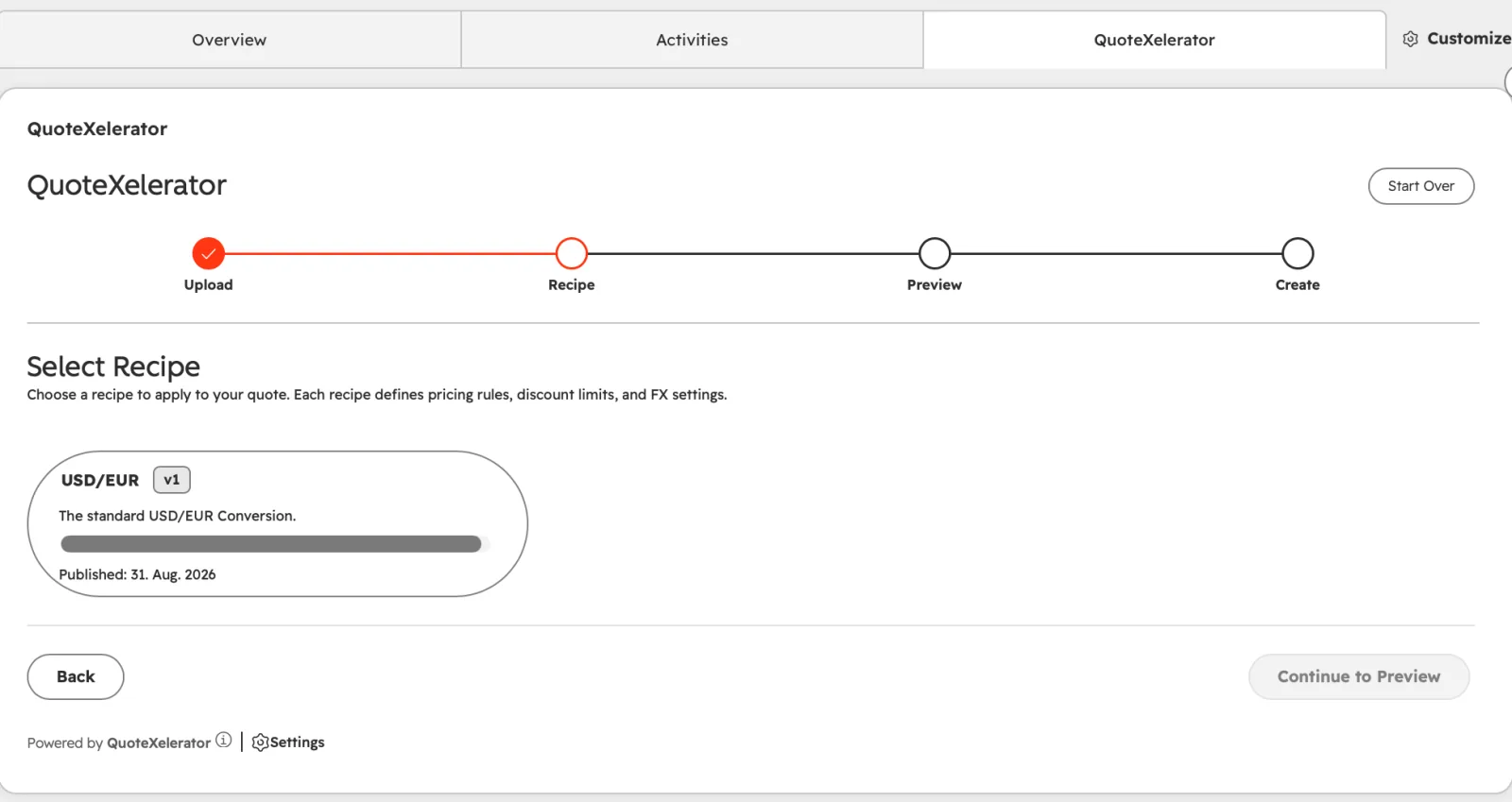
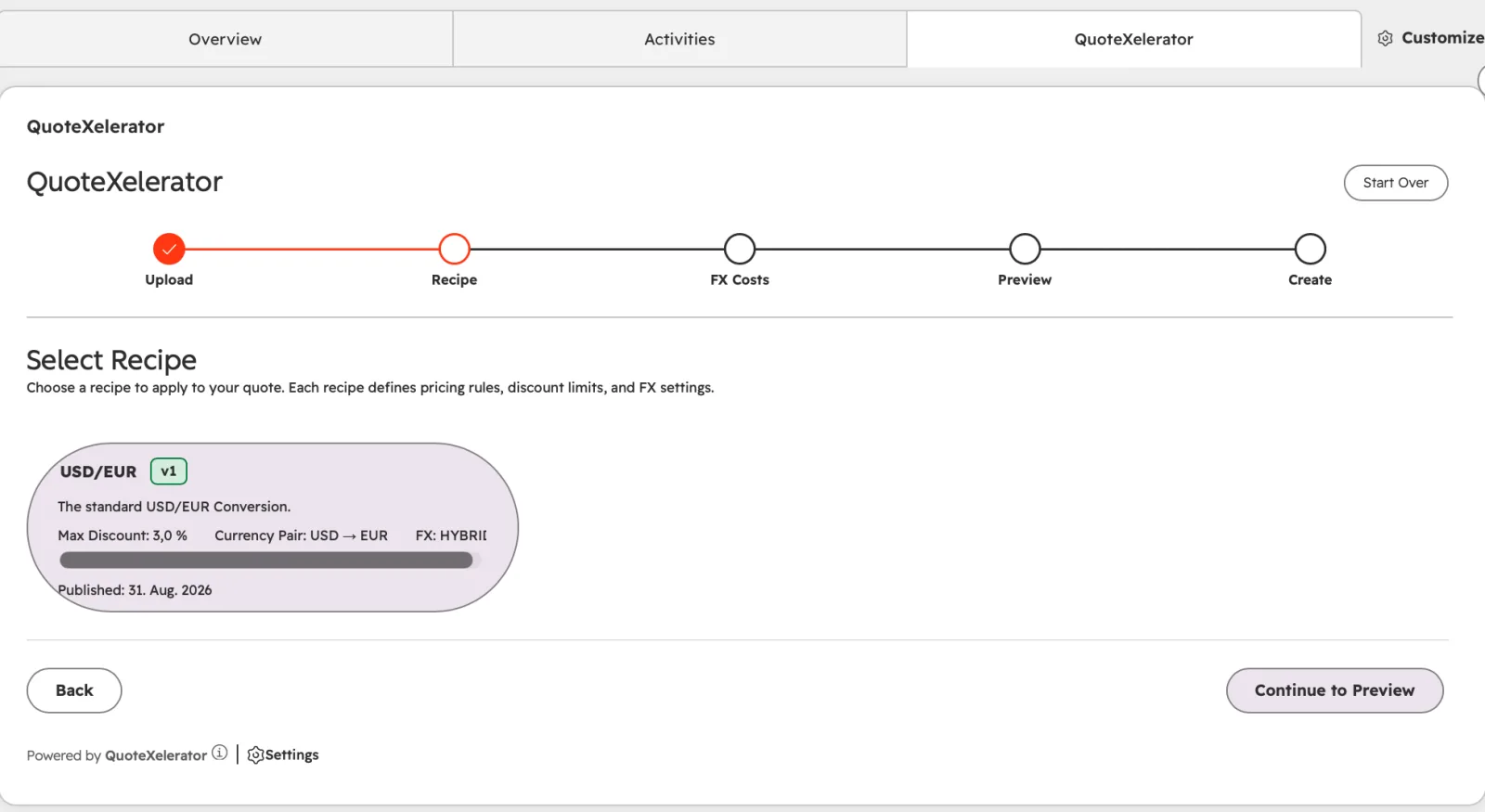
The card shows the recipes assigned to you. Click one to see its maximum discount, currency pair and currency mode, then choose Continue to Preview.
Published recipes assigned to you. A selected recipe shows its rules before you continue. -
Enter your conversion costs
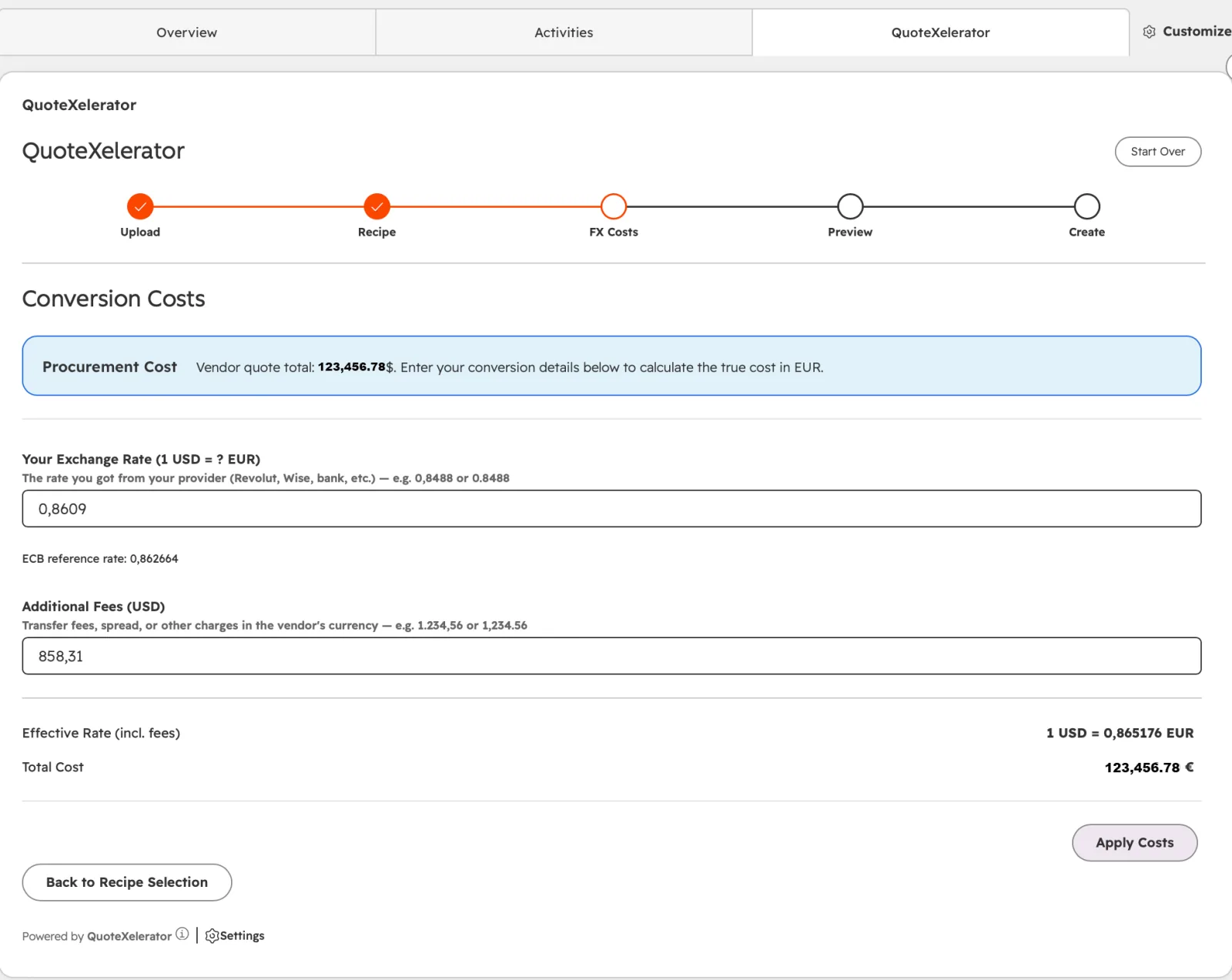
If your recipe converts currency, the card asks what converting the money actually costs you. Enter the exchange rate your bank or payment provider gave you, and any extra fees in the vendor's currency. The card shows the ECB reference rate for comparison and works out your effective rate and total cost. Choose Apply Costs.
Your real conversion cost, so the margin reflects what you pay. -
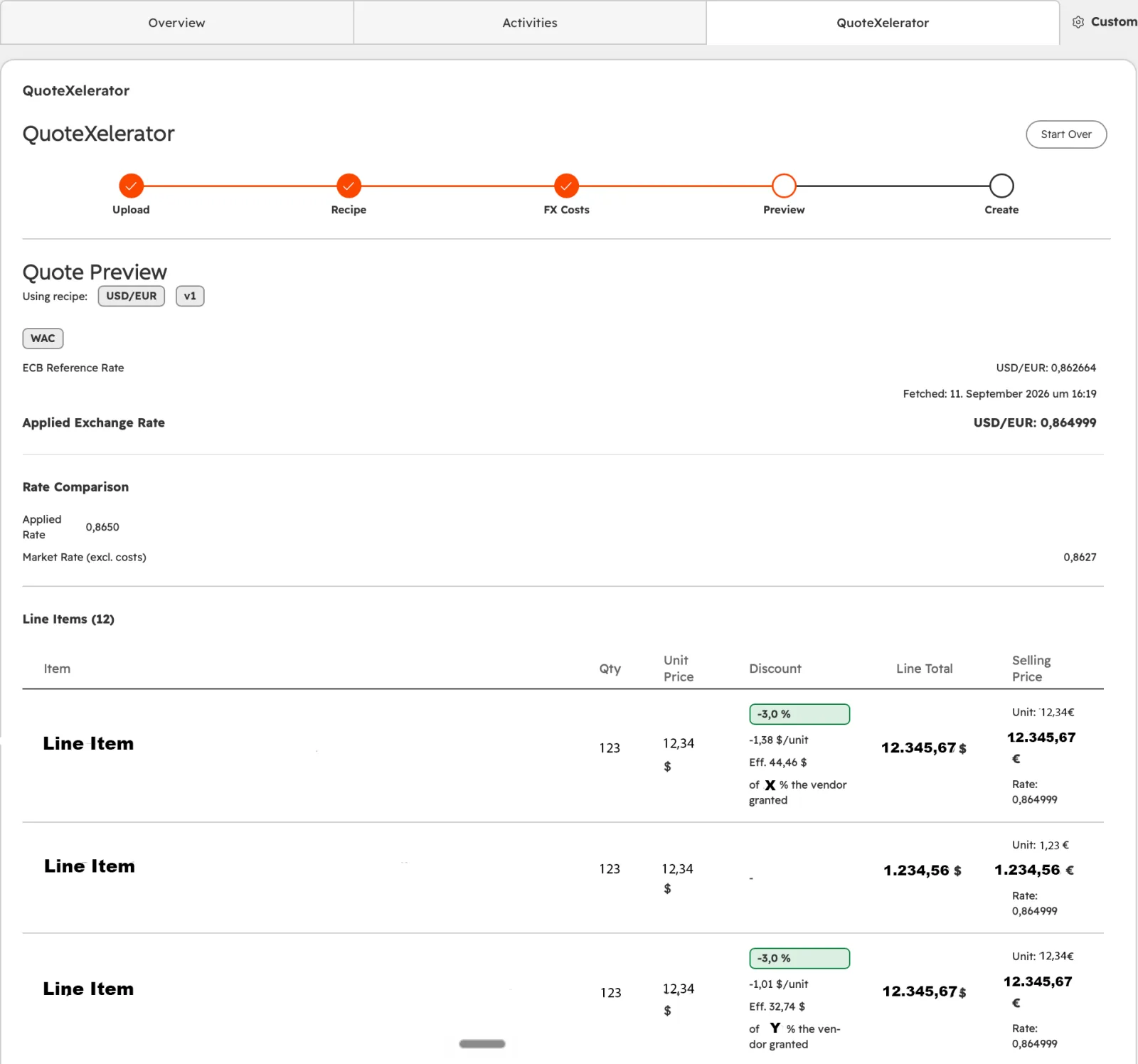
Check the preview
The preview shows every line item with its discount, the exchange rate applied, and the selling price. Nothing has been written to the deal yet.
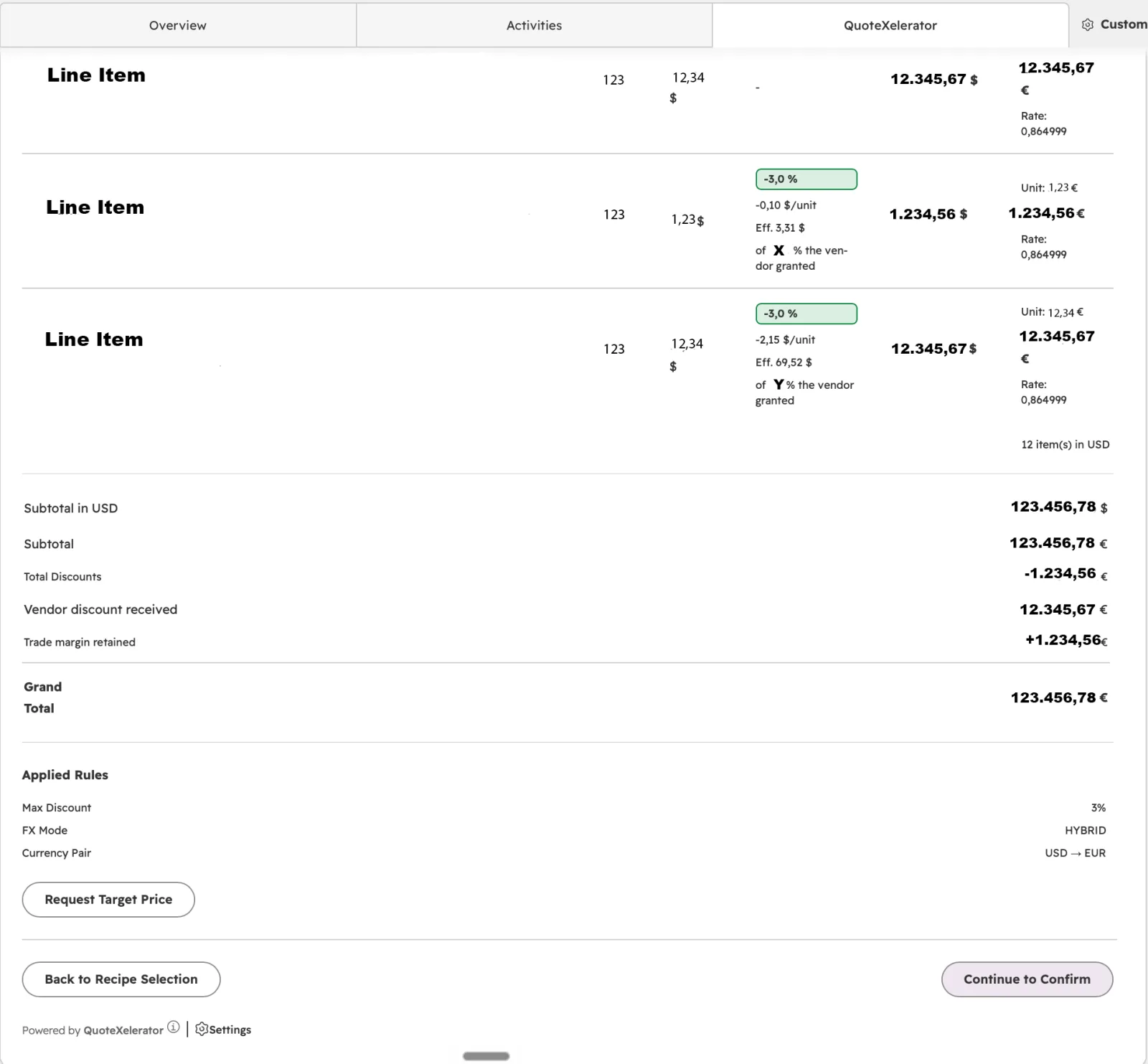
Rates and line items in the preview. At the bottom you find the totals: the vendor discount you received, the discount you pass on, and the margin you keep. Choose Continue to Confirm when the numbers are right.
If the customer needs a different price, choose Request Target Price. The request goes to an owner or manager in the Approvals tab. Once it is approved, open the deal again and create the line items. The approved price is applied then.
Totals and margin. Request a target price or continue. -
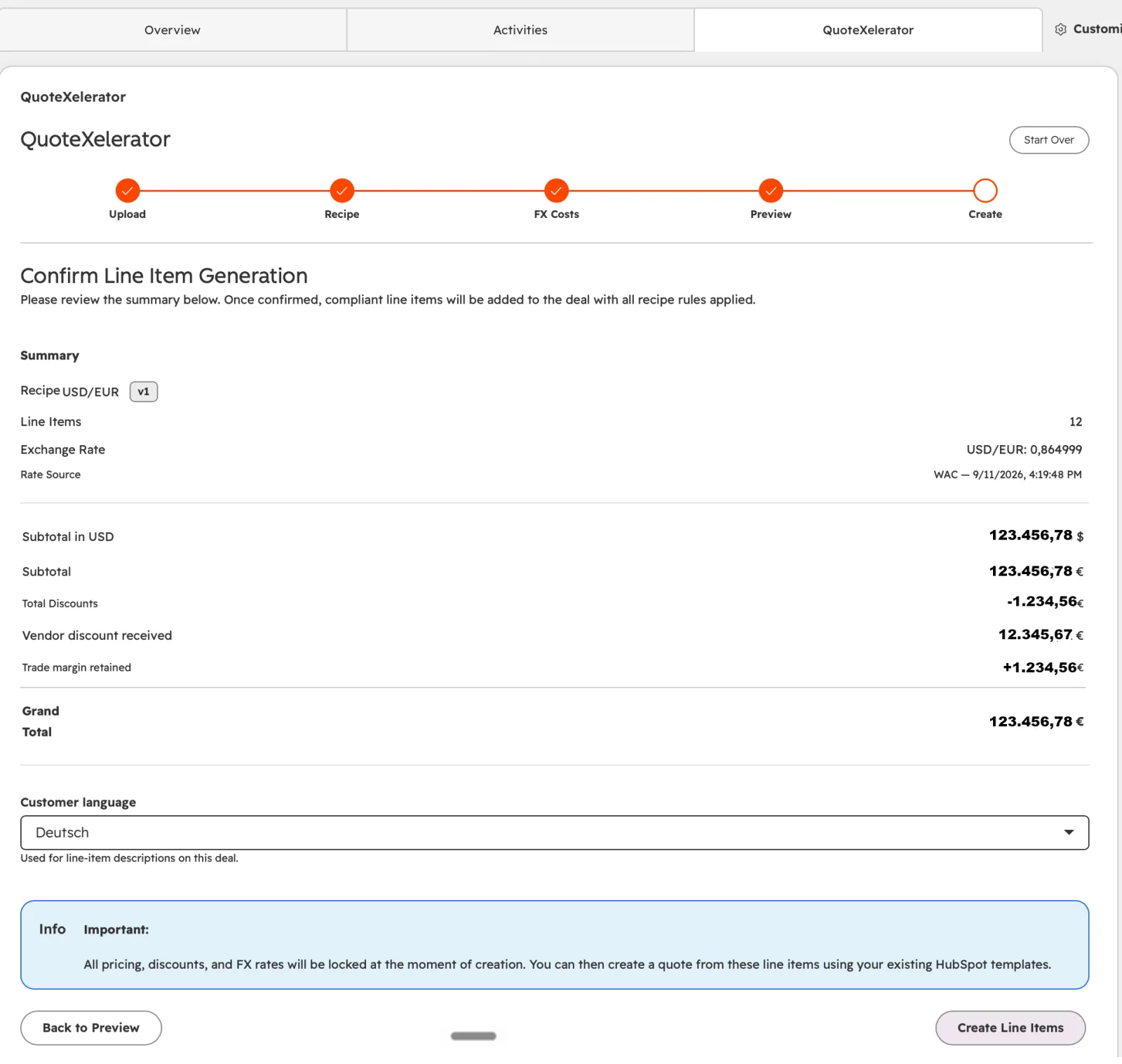
Confirm and create the line items
The summary repeats the recipe, the number of line items, the exchange rate and the totals. Choose the Customer language for the line item descriptions, then choose Create Line Items. Prices, discounts and rates are locked at this moment.
The last check before anything is written to the deal. -
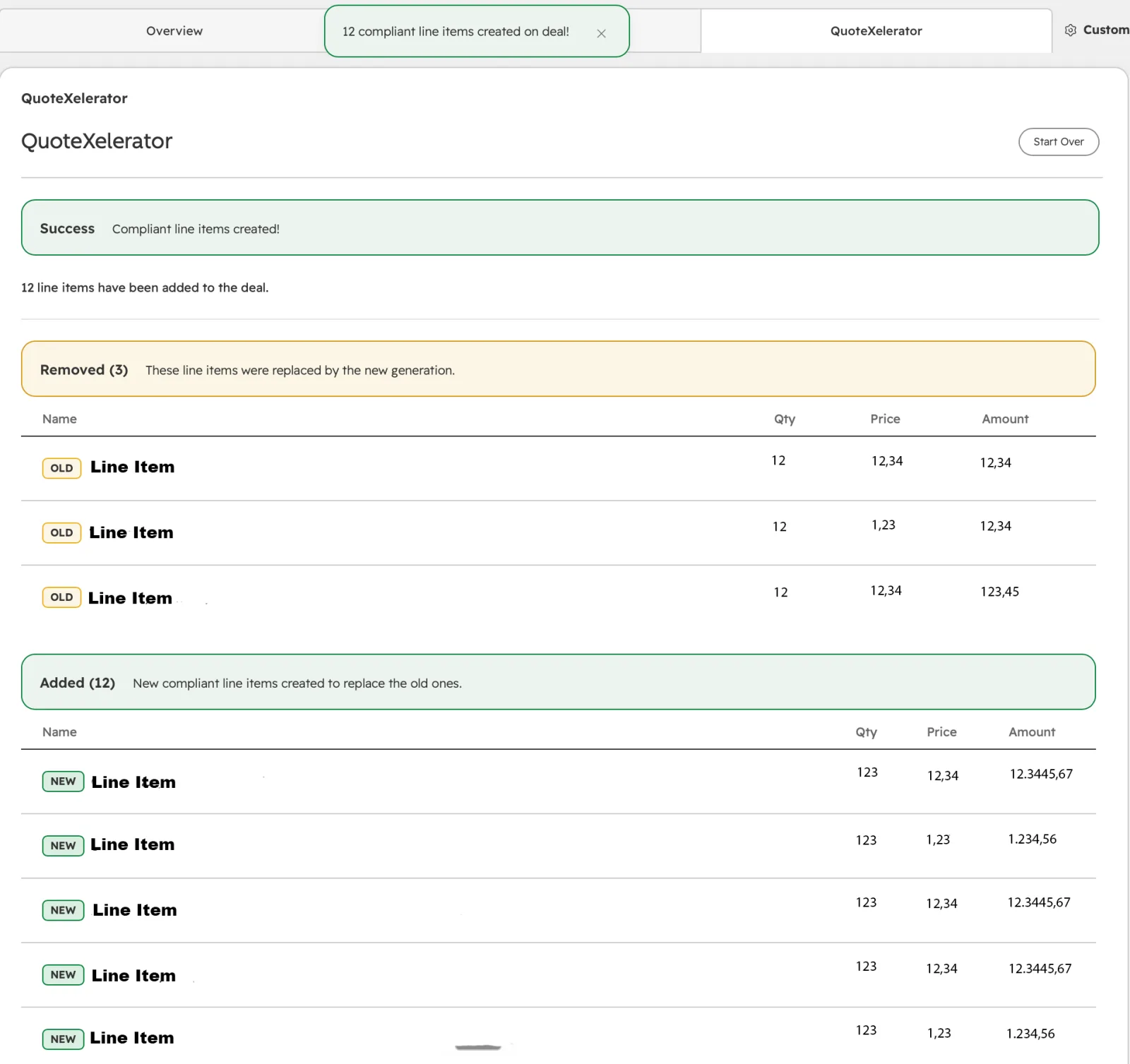
See what changed on the deal
The card confirms the result and lists the line items it removed and added. Creating line items replaces every line item that was on the deal, including ones added by hand. Build your quote from the new line items with your usual HubSpot quote template.
The creation is recorded in the compliance log, which owners open under Compliance Logs in the app settings. The log also names the vendor quotes the line items came from.
Replaced and new line items after creation.
-

Frequently asked questions
Where do I find the app settings?
Two ways lead to the same page: Settings at the bottom of the card on any deal, or in HubSpot under Settings, Integrations, Connected Apps, QuoteXelerator.
Recipes, team members and roles, currency reserves, notifications, vendor connections and the compliance log are all managed there.
The card or a new recipe does not show up. What now?
Reload the page first. HubSpot caches record layouts and app state, so a card you just added or a recipe you just published can need one reload.
If the card is still missing, check that you added it to the view you are looking at and that you have a role in the app. Colleagues without a role see nothing to work with.
The token was accepted, but the quote list stays empty.
The token is probably not allowed on the transaction account that holds the quotes. Open the token's Permissions tab at Atlassian and check that the account is listed.
What happens when an Atlassian token expires?
It stops working on its expiry date. We check your connections daily and email the person who added the token 30 days and 3 days before it expires.
To switch without a gap, add the new token first and remove the old one afterwards. Atlassian ends the old token as soon as you rotate it. If one token is refused, we fall back to another of yours and flag the one that failed.
How do I disconnect my Atlassian account?
In the app settings, open Vendor Connections and choose Remove next to the token. QuoteXelerator stops reading quotes with it straight away. To shut the token off at Atlassian as well, delete it under API Onboarding in the Partner Purchasing Center.
Each person manages their own tokens. An owner cannot remove a colleague's token, so ask them to remove it or uninstall the app.
How do I uninstall the app?
You need permission to manage apps in HubSpot. Uninstalling also disconnects your HubSpot account from QuoteXelerator.
- In HubSpot, open Settings, then Integrations, then Connected Apps.
- Find QuoteXelerator and open Actions in its row.
- Choose Uninstall and confirm.
The card disappears from your deals. You can also remove the QuoteXelerator tab from your deal layout under Customize.
What happens to my data when I uninstall?
Line items already on your deals stay where they are. They are HubSpot records, so uninstalling does not change or delete them, or any quotes built from them.
Once HubSpot reports the uninstall to us, we delete your app data: recipes, user assignments, stored Atlassian tokens, preferences and imported quotes. This cannot be undone, and a later reinstall starts empty.
Compliance logs and your subscription record are deleted 90 days after the subscription ends. Invoices are kept for 10 years, as German tax law requires. Our privacy policy has the details.
If you want a copy of your data, ask us before you uninstall and we will export it. If you want it deleted sooner, write to us as well.
Where to go next
- Vendor quote import Connections, tokens, and how the card finds a customer's quotes.
- Recipes Every setting a recipe holds, and what publishing locks in.
- Users and assignments Roles, recipe assignments, and who can approve what.
Need a hand?
Write to contact@quotexelerator.com, or use the support portal if you would rather open a ticket.